 See it in action
 Goal bar: free shipping progress bar (AndOr Order goal block)
On this page
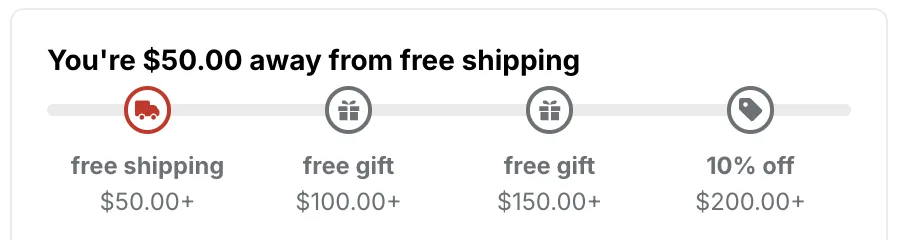
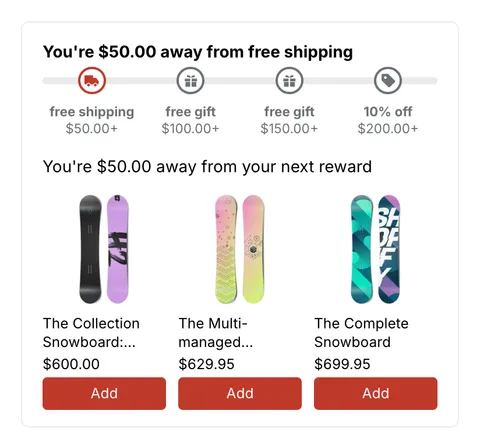
The goal bar, often called a free shipping bar, tells a shopper how much more to spend to reach the next reward, with a progress bar and a step for each reward. It comes from the AndOr Order goal block and can also show at the top of the cart drawer.
Made by: an Order goal, Free shipping goal, Tiered rewards or Order goal bar promotion. The products under the bar come from a Goal suggestions offer.
For developers: Code · Styling · Events
What shoppers see
- A sentence that names the next reward, for example “You’re $20.00 away from 10% off your order”.
- A progress bar that fills as the cart grows.
- A step for each reward, with the reward (“Save 10%”) and the amount that unlocks it (“$100.00+”). A step the cart has reached shows a check.
- Reward icons: a tag for money off, a truck for free shipping and a gift box for a free gift.
- Once a reward is reached, a line such as “You’ve unlocked 10% off your order” above the sentence for the next one.
With one threshold, the bar has no steps: it fills from zero to the amount.
Several rewards on one bar
When your discounts can combine at checkout, they share one bar. Example: free shipping at $50, 10% off at $75 and a free gift at $120 draw one bar with three steps. The sentence names the next reward (“You’re $15.00 away from 10% off”). The unlocked line names every reward held (“You’ve unlocked free shipping + 10% off”).
Discounts that can’t combine never share a bar. The bar shows the one the shopper reaches first.
In the cart drawer
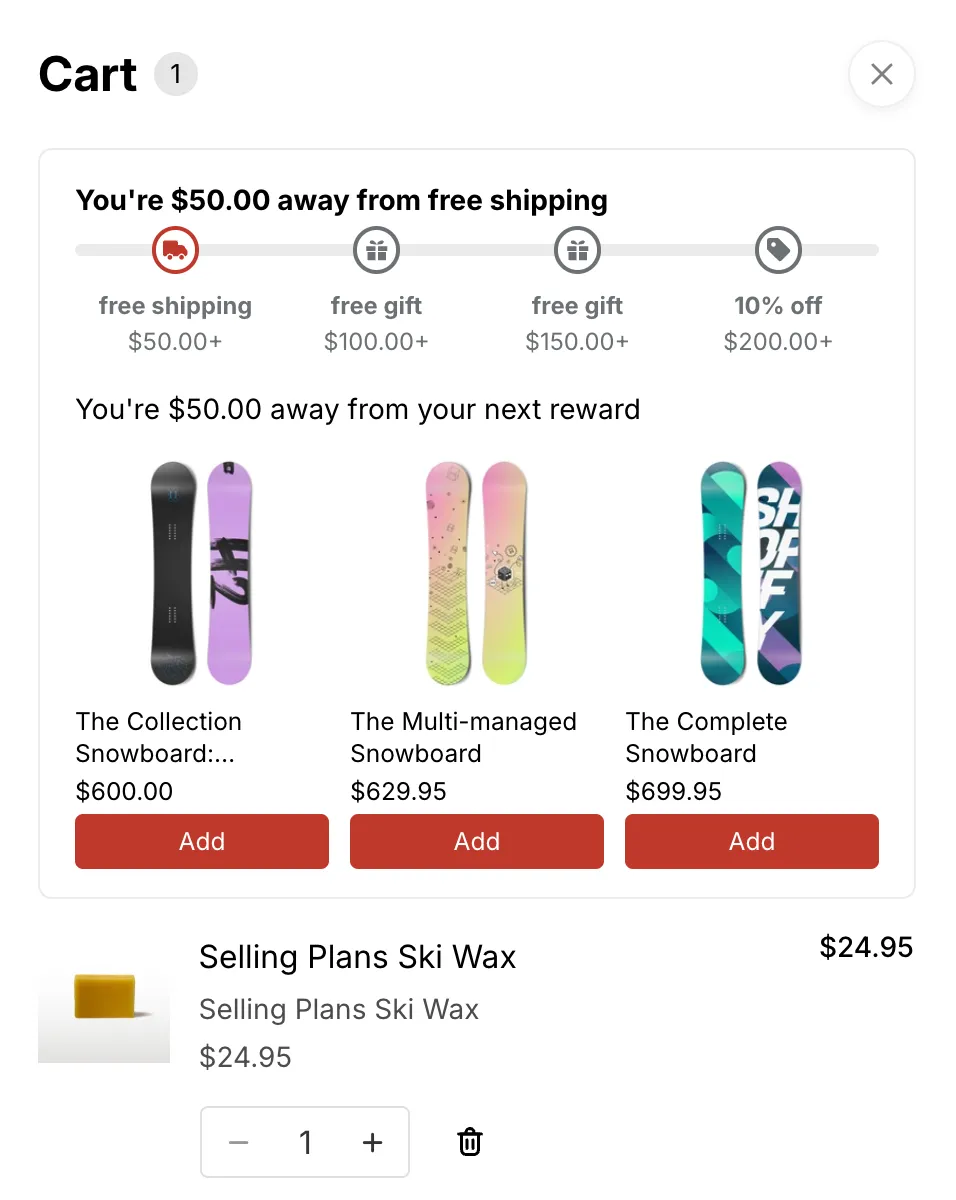
Turn on Also show in the cart drawer in the block, and a copy of the bar shows at the top of the drawer when it opens. The copy shows only on pages where the block is placed. Example: with the block on the product template only, the drawer shows the bar on product pages, not on the home page.
Layouts
The Layout setting on the AndOr Order goal block picks the look.
Horizontal
The bar runs across, with the reward steps along it. This is the default. Use it on most product and cart pages.
Setting: Layout > Horizontal.

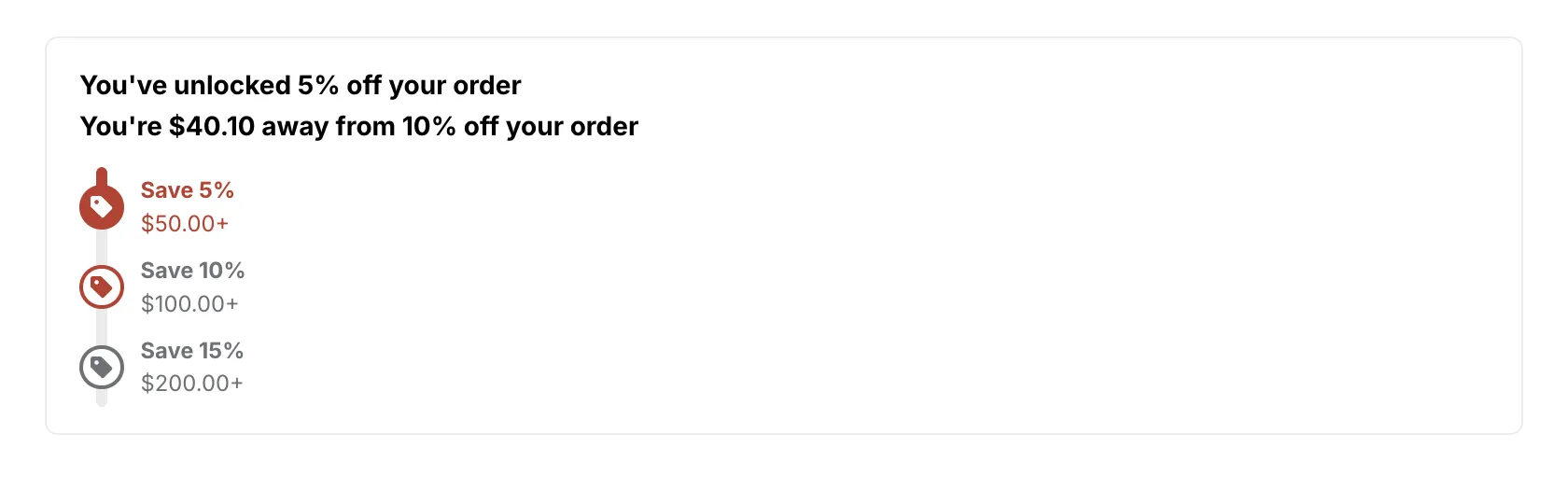
Stacked list
The reward steps sit one under the other, and the progress line runs down the side. Use it when you have several rewards with longer names.
Setting: Layout > Stacked list. It needs a discount with two tiers or more. One threshold always shows as a horizontal bar.
The Icon position setting moves the reward icons. It needs Show reward icons on.
Inside circle
Each step’s circle holds its reward icon, in place of the check mark. This is the default.
Setting: Icon position > Inside circle.

Beside label
The icon sits before the reward words, and the circles keep their check marks.
Setting: Icon position > Beside label.

Where it goes
| Place | How it gets there |
|---|---|
| Product page | AndOr Order goal block on the product template |
| Cart page | AndOr Order goal block on the cart template |
| Cart drawer | Also show in the cart drawer on the block |
Note The cart drawer, and updates the moment the cart changes, need a theme that sends Shopify’s storefront cart events. Horizon 4.0+ and Dawn 15.5+ do. On other themes, shoppers see this widget on the cart page and product page. It updates on the next page load. See Theme requirements.
Add the block
Note App blocks need an Online Store 2.0 theme. On an older (vintage) theme, turn on the app embed and paste the one-line tag instead. See Theme requirements.
The goal bar comes from the AndOr Order goal app block. You can add it to product pages and the cart page, and copy it into the cart drawer with one checkbox.
-
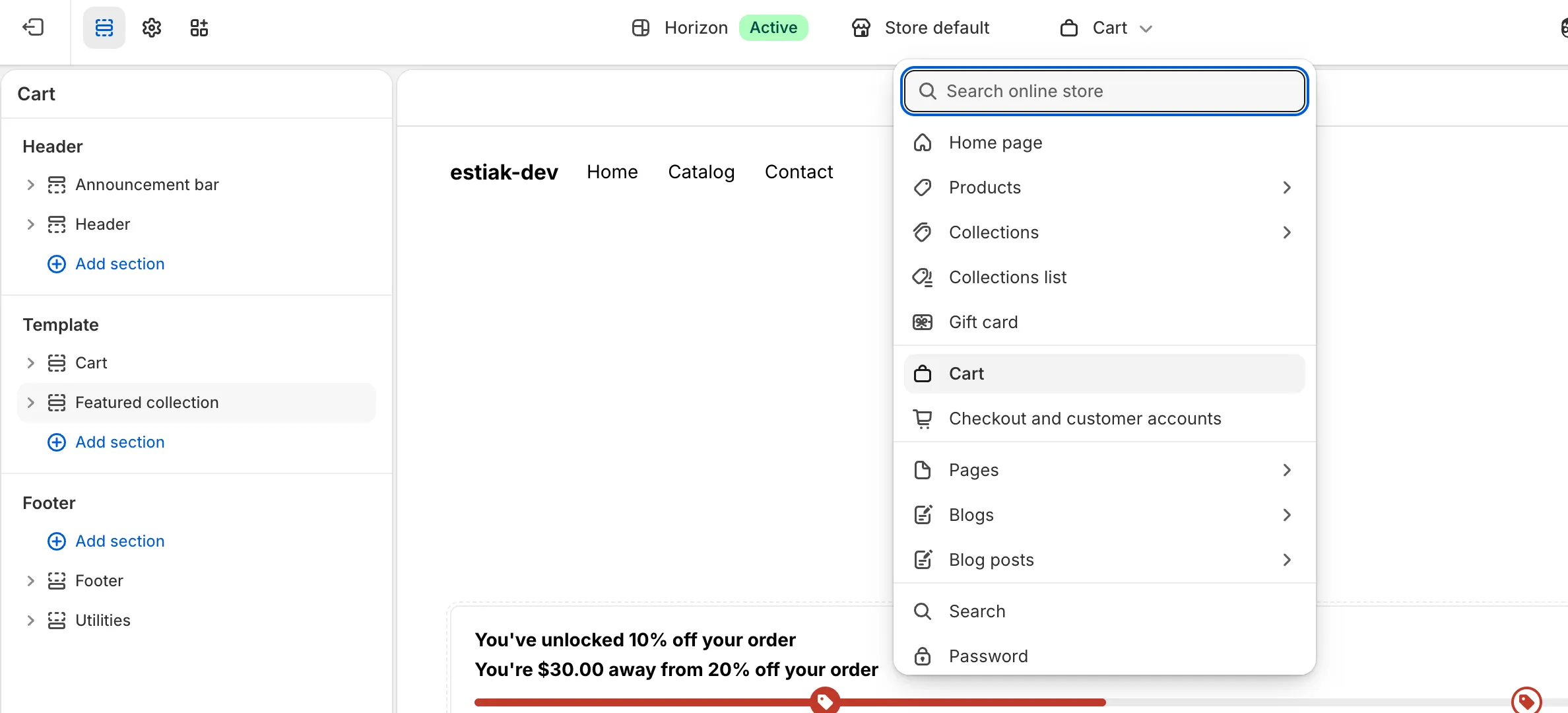
Open the theme editor on the cart or product template.
In Shopify, go to Online Store > Themes and click Edit theme. Pick Cart, or a product template, in the page menu at the top.
-
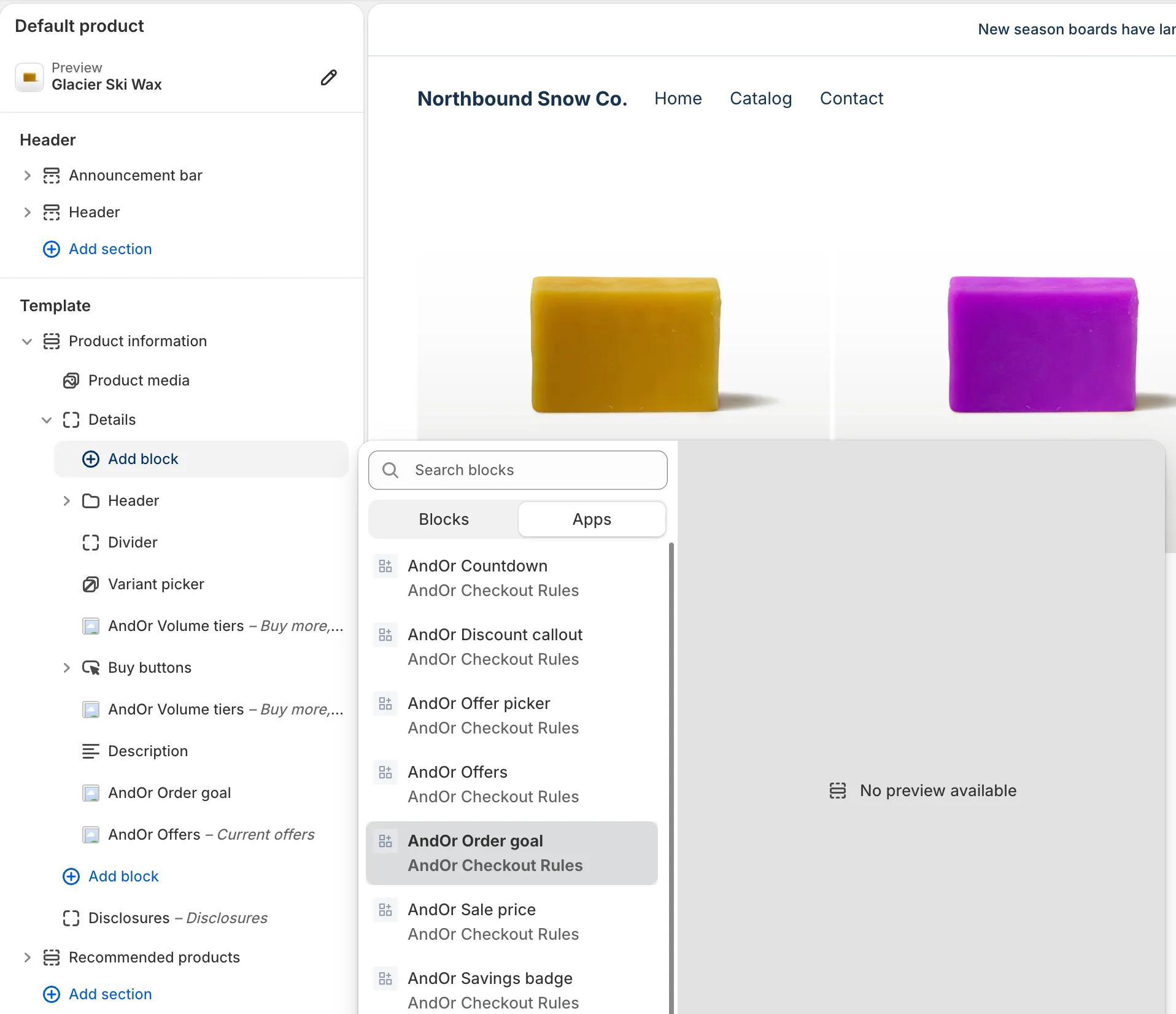
Click Add block, open Apps and pick AndOr Order goal.
Add it inside a section.
-
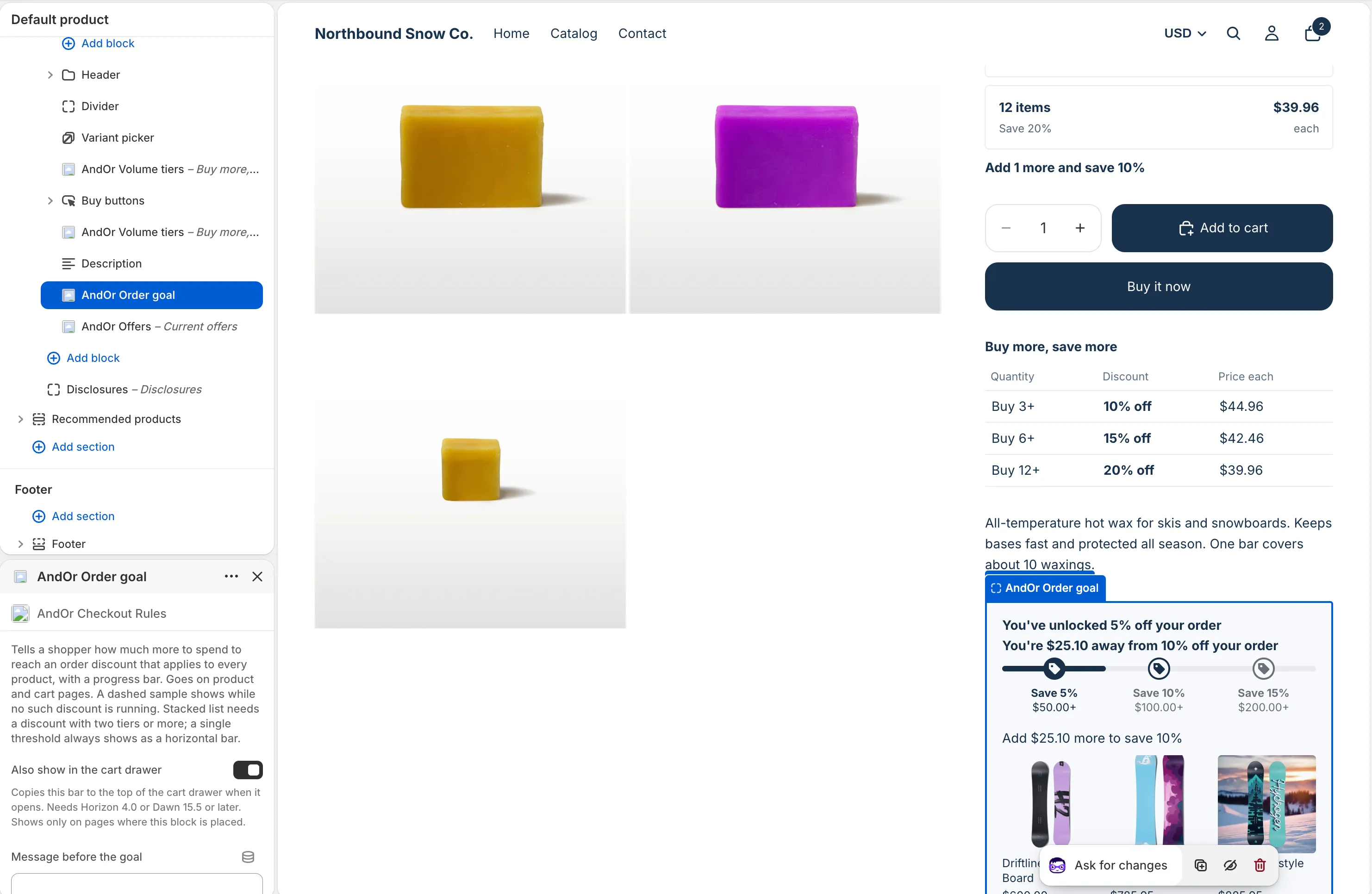
Drag the block where you want it, then click Save.
On the cart page, above the cart lines or above the checkout button works well. On a product page, under the price or the buy buttons.
Tip In AndOr, the What’s next card after you save a promotion has Open theme editor and Add to cart page buttons. They open the theme editor with the block ready to place.
Or paste the tag
A developer can paste <andor-goal> into theme code where blocks can’t
go. <andor-goal data-drawer="only"> feeds the cart drawer only. See
One-line tags.
Block settings
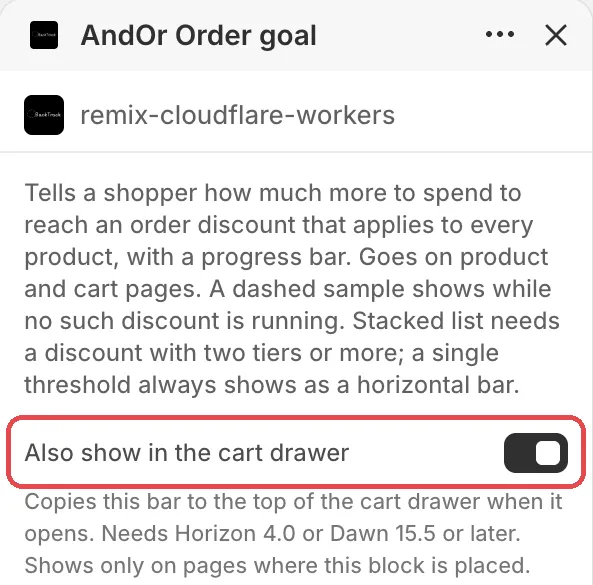
The block starts with a short paragraph about what it shows.
Also show in the cart drawer
Copies this bar to the top of the cart drawer when it opens. It needs Horizon 4.0 or Dawn 15.5 or later, and it shows only on pages where this block is placed.
Default: off.
Message before the goal
The sentence while the cart is short of the goal. Leave it blank to use the built-in text, for example “You’re $20.00 away from 10% off your order”.
Placeholders: [remain_val] is the amount still to spend, [disc_val]
the saving, [min_val] the total that unlocks it. Other brackets are
dropped.
Example: Spend [remain_val] more and save [disc_val].
Message once the goal is reached
The sentence once the cart reaches the goal. Blank uses the built-in
text, for example “You’ve unlocked 10% off your order”. [disc_val] is the
saving unlocked and [min_val] the total that unlocked it. With tiers,
this line names the tier reached, above the message for the next one.
Free shipping: message before the goal
Replaces Message before the goal when the goal is free shipping.
Blank uses, for example, “You’re $15.00 away from free shipping”.
[remain_val] is the amount still to spend, [min_val] the total that
unlocks it.
Free shipping: message once reached
Replaces Message once the goal is reached when the goal is free
shipping. Blank uses “You’ve unlocked free shipping”. [min_val] is the
total that unlocked it.
Combined rewards: message before the goal
Used when several discounts share one bar. Here [disc_val] is a phrase
such as “10% off + free shipping”. [remain_val] is the amount still to
spend. Blank uses, for example, “You’re $15.00 away from 10% off”.
Combined rewards: message once reached
Used when several discounts share one bar. [disc_val] is the phrase
unlocked, [min_val] the total that unlocked it. Blank uses, for
example, “You’ve unlocked free shipping + 10% off”.
Bar color
The color of the fill, the reached steps and the next step. Left at the default, it follows the app embed’s Sale price color, or else your brand color.
Default: #c0392b.
Layout
How the steps are laid out.
Options: Horizontal, Stacked list. Default: Horizontal.
Stacked list needs a discount with two tiers or more. One threshold always shows as a horizontal bar.
Show reward icons
A small tag, truck or gift icon beside each milestone. The app embed’s Show reward icons on goal bars turns icons off on every goal bar at once. Either checkbox off hides them.
Default: on.
Icon position
Where the icon sits. Inside circle puts the icon in each milestone’s dot, in place of the check mark. Beside label puts it before the reward words.
Options: Beside label, Inside circle. Default: Inside circle.
Translate the messages
Each goal message you type in the theme editor shows as-is in every language. Leave it blank to use AndOr’s built-in text, which appears in your shoppers’ language.
The Storefront text page changes two other goal bar lines per language: the note shown when another discount wins over the goal, and the Add button on suggested products.
What it needs to appear
- Optional: the app embed. The block shows without it. The embed adds your shared look settings, text changes, the cart drawer parts and one-line tags.
- The discount shows on your storefront.
- The discount applies to the whole order, starts at a minimum spend (for example 10% off orders over $50) and works without a code. Free shipping over a minimum spend works too.
- The discount is inside its active dates.
- JavaScript runs on the page. The bar’s words and fill are drawn by a script.
The cart drawer copy also needs Horizon 4.0 or later, or Dawn 15.5 or later, and a cart with items.
Note In the theme editor, a dashed sample bar shows while no such discount is running. Shoppers never see the sample.
Show it in more places (code)
To show it where your theme has no slot for the block, paste a line of code. See Goal bar: Code.
Limits
- A minimum quantity (“buy 3 items”) is not a spend goal. The bar does not show it.
- A discount with a code does not show. A shopper who has not typed the code has no goal to climb.
- A discount that counts only some products toward the total does not show, because the bar would overstate progress.
- A fixed amount off each item (“$5 off each”) does not show.
- In a currency other than the store’s, the bar shows for a tiered AndOr goal. A one-threshold goal, or a goal from a Shopify discount, does not show.
- A free shipping goal that a product or order discount beats (they don’t combine) is left off the bar. AndOr marks it Hidden from the goal bar in the app.
- The bar only knows the discounts you show on your storefront. A code a shopper types, or a discount you did not switch on, can still win at checkout.