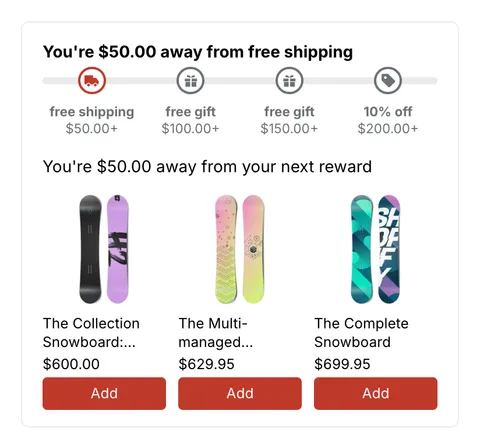
 See it in action
 How checkout rules work
Paid planRefresh, Import, Export and the Version column are on paid plans, Starter and up.
A checkout rule changes what shoppers see at your Shopify checkout. It can hide, rename or reorder payment and shipping methods, block checkout with an error message, or apply a discount.
Note Rules run inside Shopify’s own checkout as Shopify Functions. Nothing is added to your theme, and the checkout stays fast. They work on all Shopify plans except Shopify Starter.
What a rule can do
There are four rule types. Each one has its own rule cards on the Create rule page.
- Payment: Hide payment methods, Rename payment methods, Reorder payment methods and Hide express checkout options.
- Shipping: Hide shipping methods, Rename shipping methods and Reorder shipping methods.
- Validation: Checkout validation. It blocks checkout and shows your error message.
- Discount: Product discount, Order discount, Shipping discount, Combined discount and Tiered rewards.
Every rule works the same way. You add conditions (for example “Order total amount is greater than or equals 500”). When a shopper’s checkout matches them, the rule does its action (for example “Hide Cash on Delivery”).
Where rules run
Rules run in Shopify checkout, while the shopper fills it in.
This means:
- Payment, shipping and validation rules apply on the real checkout, not in the cart or on product pages. Discount rules also apply in the cart.
- They also apply on one-page checkout, with nothing extra to turn on.
- They don’t run in Shopify POS. Draft orders have their own limits. See Limits.
The Rules page
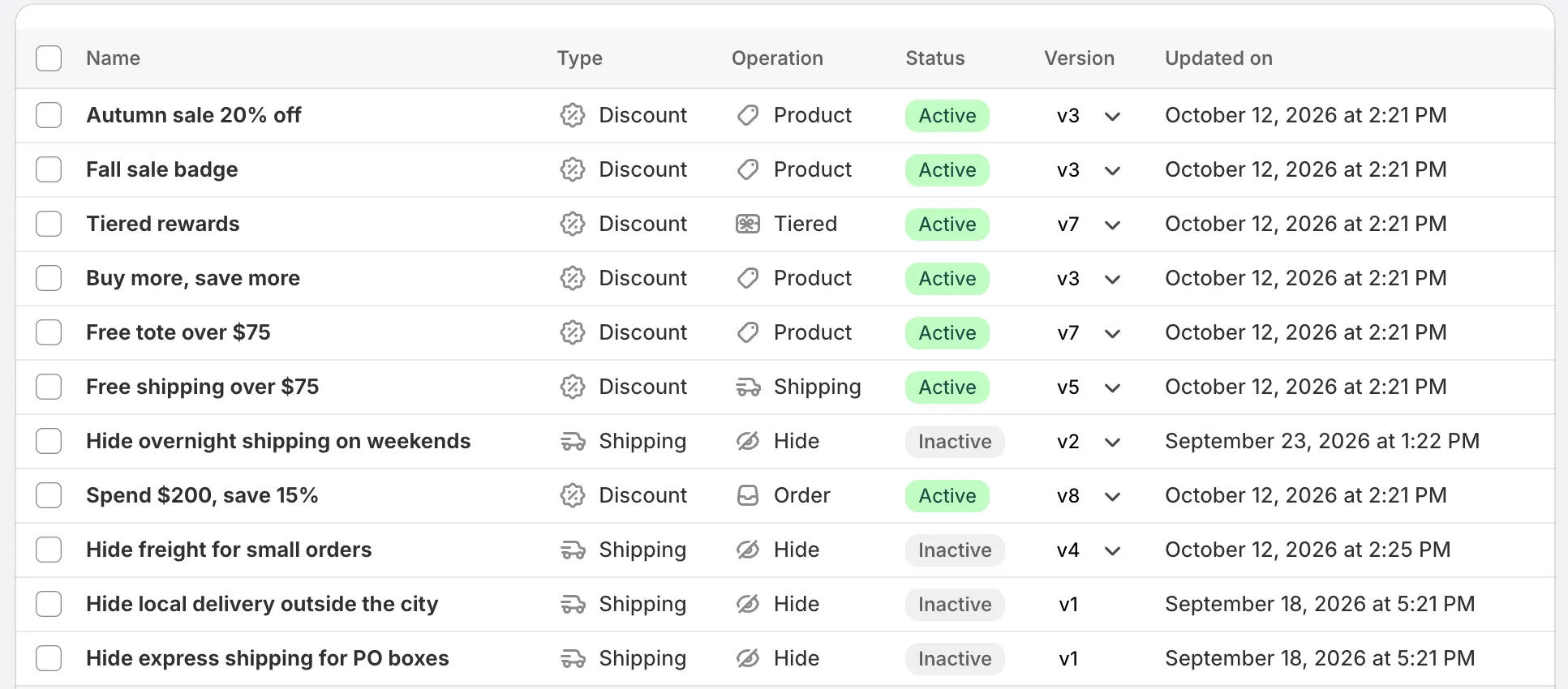
Open Rules in the app menu. The page title is Rules, with the line “Access all of your rules from here”. It lists every rule you made with AndOr.
Buttons
Create rule
Opens the Choose rule type page. Pick a rule card, or pick a ready-made use case under Use Cases.
Refresh
Syncs the list with your discounts and functions in Shopify. Use it if a change made outside the app does not show yet.
Import
Imports rules from .json or .zip files you exported before. All
imported rules are created as inactive. See
Import and export.
Restore
Shows as Restore (count) when AndOr finds rules from before you last uninstalled the app. Restored rules come back as inactive. See Refresh and restore.
Tabs
Tabs filter the table by rule type: All, Payment, Shipping, Validation and Discount.
The Quick finder search bar sits above the table. Type what you want to set up, for example “hide cash on delivery”, and it finds matching rules and use cases. See Quick finder.
Columns
Name
The rule name. For a discount code rule, the code shows under the name as Code (CODE).
Type
Payment, Shipping, Validation or Discount.
Operation
What the rule does: Hide, Rename, Reorder, Express, Checkout, Shipping, Order, Product or Combined.
Status
Draft, Active or Inactive. Discounts with active dates can also show (Scheduled) or (Expired) next to the status.
Version
The current version of the rule, for example v3. Each save makes a new version. See Timeline and version history.
Updated on
When you last edited the rule.
Rule statuses
Every rule has one status. You set it in the Status card on the rule page.
Draft
“A draft rule is for testing without affecting checkout for your customers.” A draft rule only runs for the test email shown in its Status card. Use it to test on your live store.
Active
“An active rule is applied on your store checkout for all of your customers.” In the Status card, choose Activate.
Inactive
“A deactivated rule will not affect checkout for your customers, so you can deactivate a rule without deleting it.” In the Status card, choose Deactivate.
Scheduled and Expired
These apply to discount rules with Active dates. They are worked out from the dates and your store time.
- (Scheduled): the start date is still in the future. Once the status is Active, the discount goes live on the start date by itself.
- (Expired): the end date has passed. The discount does not apply, even if the status is Active. Change or remove the end date to run it again.
See Schedule and status.
Bulk actions
Tick one or more rules in the table to see the bulk actions.
Activate
Sets the selected rules to Active.
Deactivate
Sets the selected rules to Inactive.
Set as draft
Sets the selected rules to Draft.
Duplicate
Makes a copy of each selected rule.
Export
Downloads the selected rules. Choose ZIP archive (one file) or Individual files (one JSON file per rule).
Delete
Deletes the selected rules and all their version history. This cannot be undone.
Caution Deleting a discount rule also deletes its linked upsell offers that have no stats yet.
Rule limits
Your plan sets how many rules can be active at the same time.
- Drafts are unlimited. Only active rules count.
- The Free plan has 2 active rules in total.
- Paid plans set a number of active rules per rule type: 5 on Starter, 10 on Growth, 15 on Pro and 25 on Scale. Pro also allows 20 discount rules.
- Every plan also sets how many rule blocks one rule can have: 2 on Free, 5 on Starter, 8 on Growth, 10 on Pro and 15 on Scale.
- Shopify allows at most 25 active functions of each type on a store. This is shared with other apps. AndOr’s top plan gives you this Shopify maximum.
When you hit your limit, the rule card on Create rule shows Upgrade instead of Select. See Rule limit reached and Plans and billing.