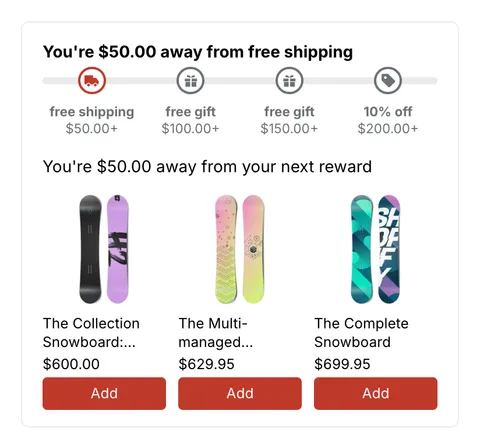
 See it in action
 Hide shipping methods
“Hide specific shipping methods at checkout based on conditions.” For example, hide express shipping for heavy orders, or hide local pickup for international shoppers.
Before you start
- Note the exact names of your shipping rates as shoppers see them at checkout, for example “Standard” or “Express”.
- To hide store pickup, use All pickup method or Delivery type is Pickup. For pickup points or local delivery, use Delivery type is Pickup point or Local delivery, or match the option by name. See Limits.
Set it up
-
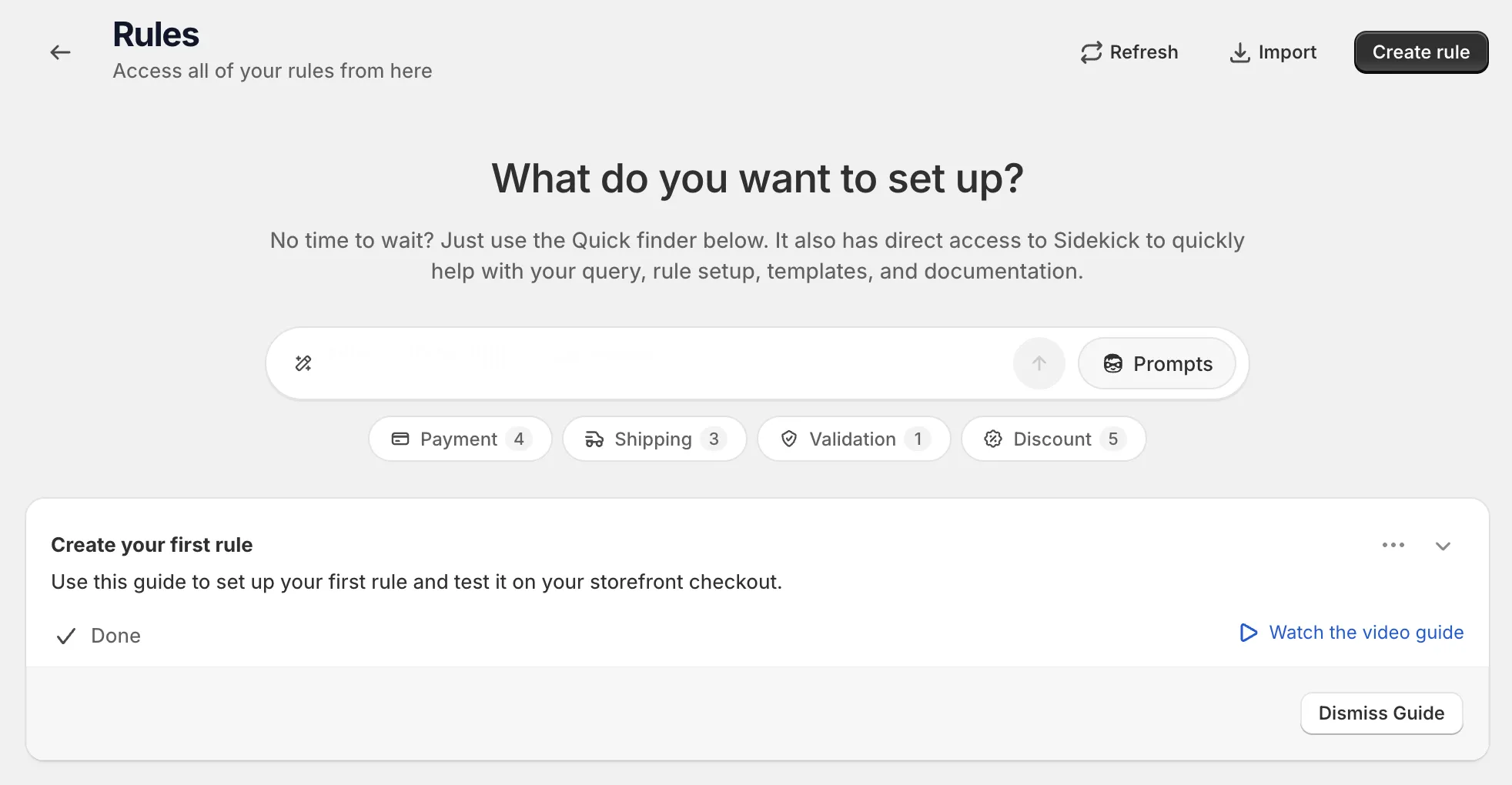
Open Rules and click Create rule.
-
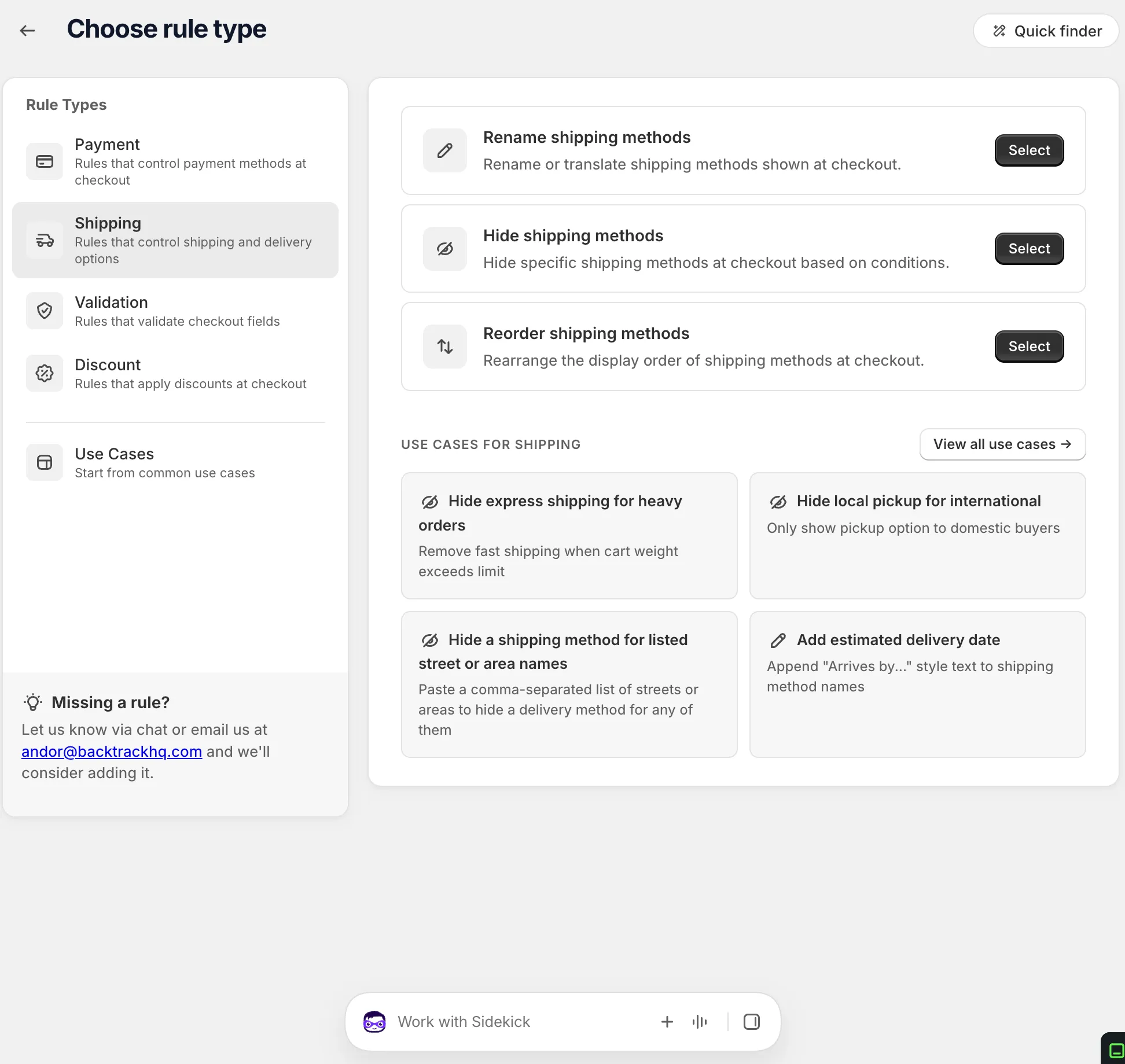
Under Shipping, find Hide shipping methods and click Select.
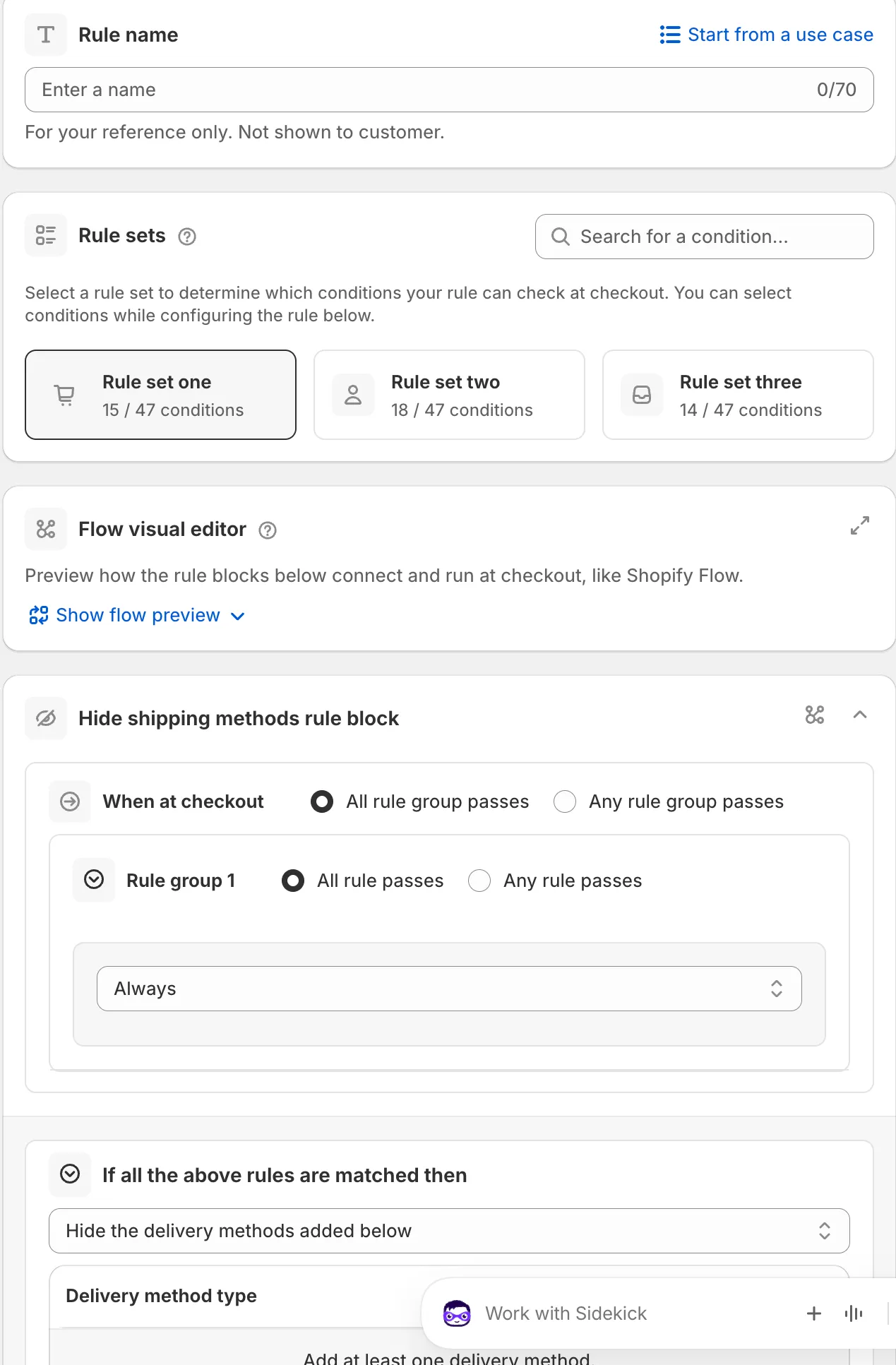
On the rule page, name the rule, or click Start from a use case to fill in the whole form. The name is for your reference only. Shoppers don’t see it. See Start from a use case.
-
Pick a rule set and add your conditions.
In Rule sets, pick the set with the conditions you need. Hover a set to preview it, or use Search for a condition….
Then, under When at checkout, add your conditions. For example Order total weight is greater than or equals a weight, or Country code. See Conditions, groups and blocks.
-
Pick an action and add the delivery methods.
Choose Hide the delivery methods added below, then click Add a delivery method. Pick a Delivery method type, a logic and a value, for example Delivery method, Name contains,
Express.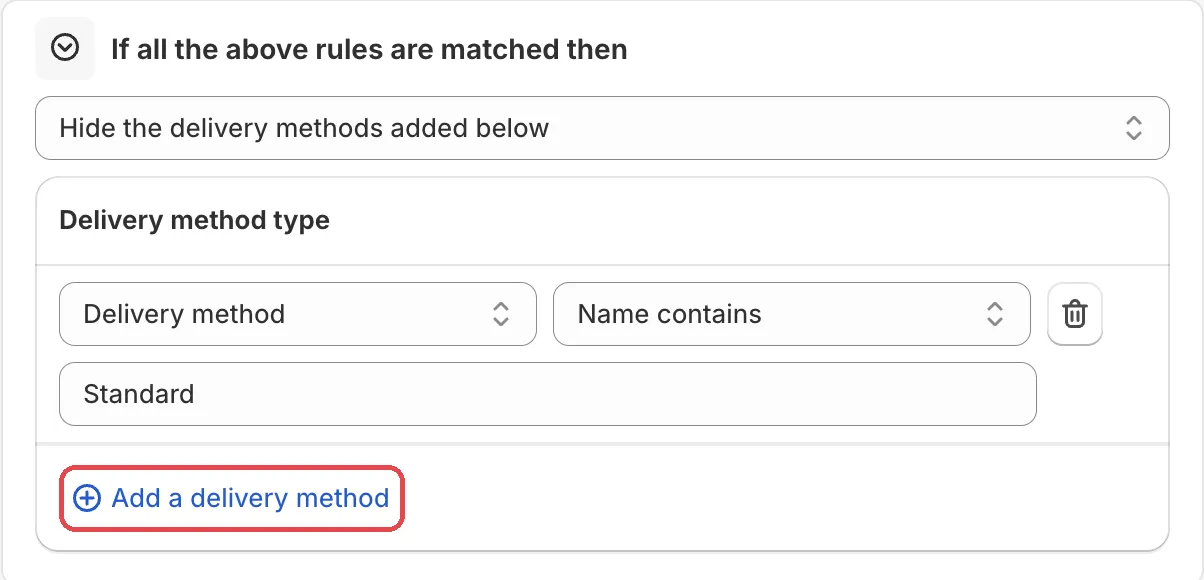
-
Save it as a draft, test it, then activate it.
In the Status card, choose Draft and save. Then go to checkout on your store and enter the test email from the rule’s Status card. Only this email sees a draft rule. Fill in an address that matches your conditions and check the shipping methods.
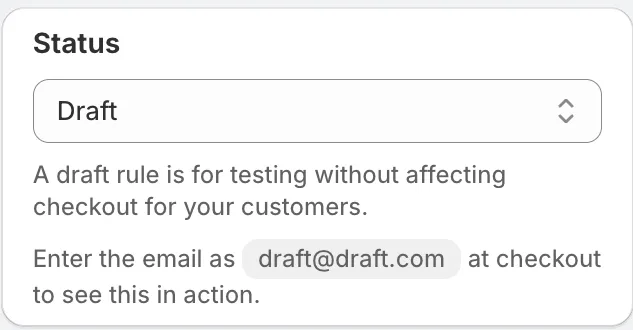
When it works, choose Activate in the Status card and save.
Actions
Hide the delivery methods added below
Hides only the methods you add to the list.
Hide all delivery methods
Hides every delivery method. Shoppers can’t complete an order that needs shipping, so use it with care.
Only show the delivery methods added below
Shows the methods you add and hides all others. For example, only show “Standard” for a remote region.
Settings
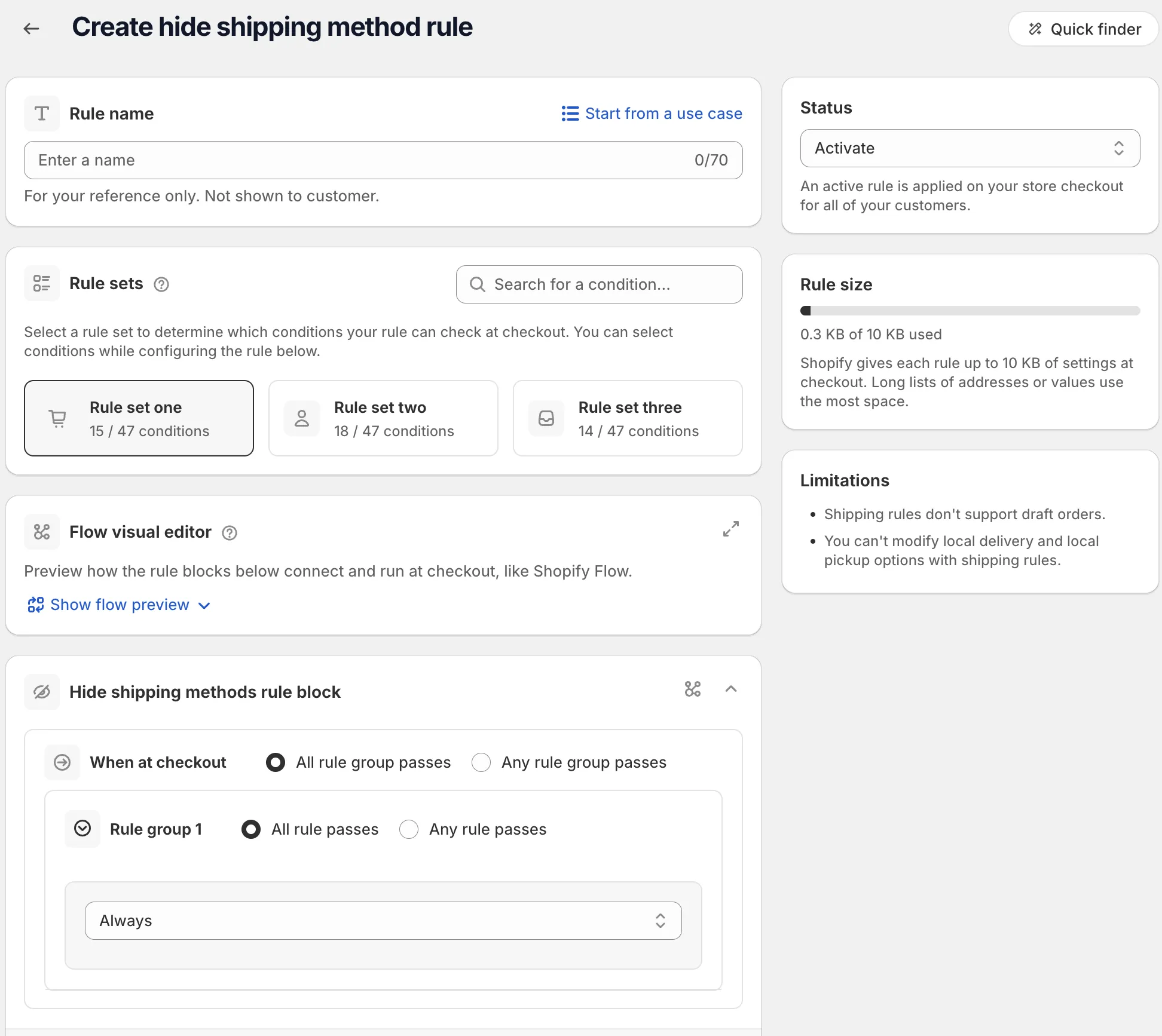
Rule sets
Choose which group of conditions the rule can check.
Delivery method type
What kind of method the row matches.
Options: Delivery method, All shipping method, All pickup method, Shipping method, Pickup method, Delivery type. Default: Delivery method.
Logic
How the row matches the method.
Options: Name contains, Name doesn’t contains, Name is, Name is not, Delivery cost is, Delivery cost is more than, Delivery cost is less than. Default: Name contains.
For Delivery type, use Is and pick one type: Pickup, Local delivery, Shipping, Pickup point, Retail or None. All pickup method and Pickup method cover store pickup only.
Value
The method name, part of the name, or a delivery cost, depending on the logic.
Allow one-character typos
A checkbox on two address conditions, in this rule type only. It is on City / Area in rule set one, and on Address line 1 and 2 in rule set two. It matches values that differ by one character, for example “Dubai”, “Dubae” and “Dubia”. Values under 4 characters still need an exact match. See One-typo matching.
Status
Options: Draft, Activate, Deactivate.
Examples
Open Start from a use case on the rule page and pick one of these:
- Hide local pickup for international: only shows pickup to domestic shoppers.
- Hide shipping by product tag: removes delivery options when the
cart has products with a tag, for example
oversized. - Hide a shipping method for listed street or area names: paste a comma-separated list of streets or areas. The method is hidden for any of them. See Example: hide shipping by address.
Limits
The Limitations card on the rule page lists:
- “Shipping rules don’t support draft orders.”
Hide shipping rules can hide local delivery and local pickup options too.
See Limits.