 See it in action
 Sidekick
Sidekick is Shopify’s AI assistant in your admin. AndOr connects to it, so you can ask about your checkout rules in plain language. Sidekick answers from your real setup, not from a help article.
Note Sidekick covers AndOr’s checkout rules and discount rules. It does not cover promotions, storefront widgets or upsell offers.
Every AndOr plan can use the Sidekick tools. Sidekick is Shopify’s feature, so it works wherever Shopify offers Sidekick in your admin. A draft from Sidekick only fills in the rule builder. Your plan’s rule limits apply when you press Save.
What you can ask
- Find and explain rules. Ask which payment rules are active, or ask it to explain what one of your rules does.
- Check your totals and limits. Ask how many rules you have of each type, how many are active, and how many more you can turn on.
- See what’s possible. Ask what AndOr can do, or browse the prebuilt templates, such as volume deals and free shipping thresholds.
- Draft a new rule, or a change to one. Describe it, and Sidekick gives you a link that opens the rule builder already filled in.
Sidekick can prefill these rule types: order, product and shipping discounts, hiding payment methods, hiding shipping methods, and checkout validation.
Example prompts
- “Which payment rules are active?”
- “Explain my BFCM free shipping rule.”
- “Create a 10% order discount over $100.”
- “Change my BFCM threshold to $150.”
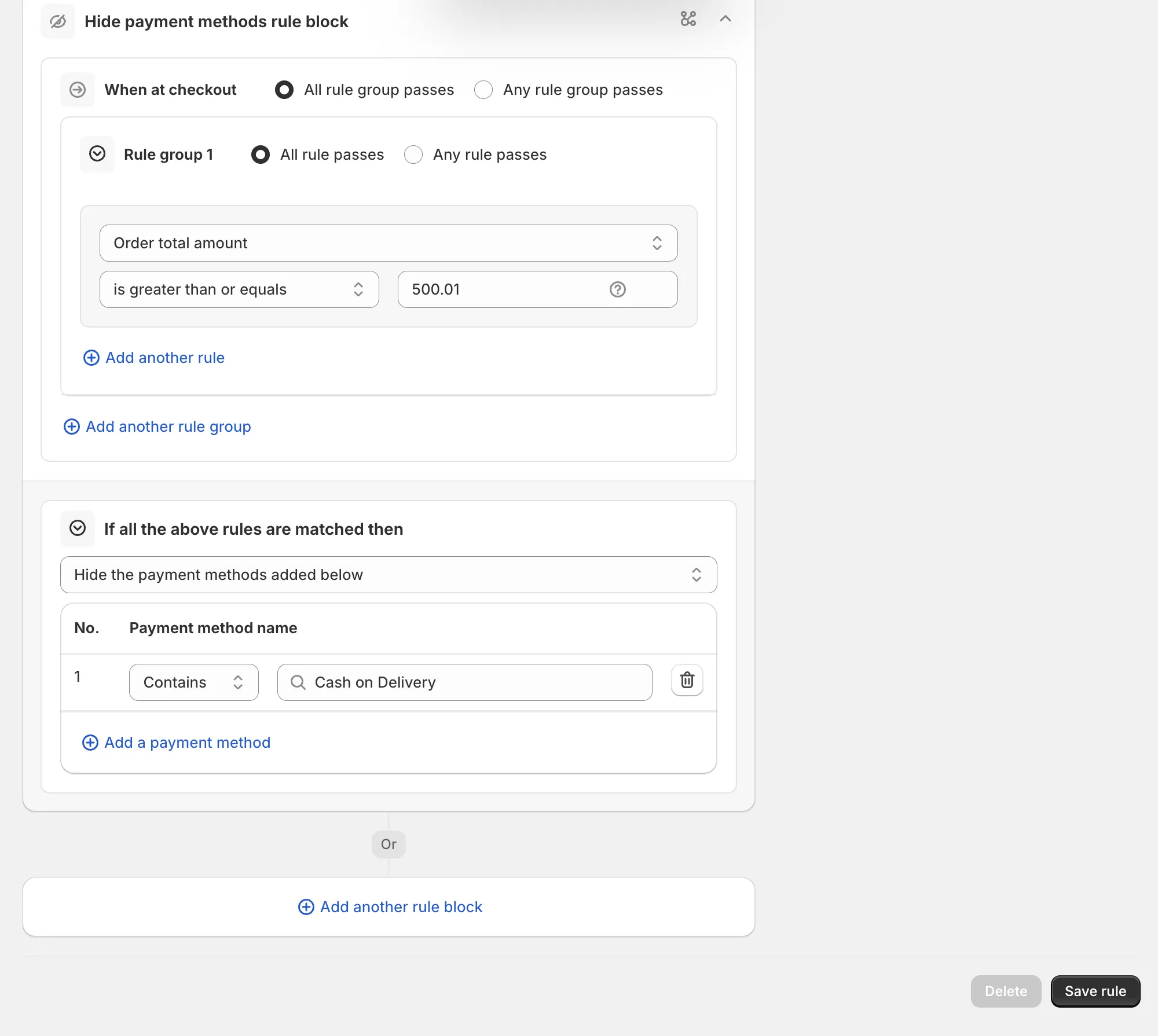
- “Hide Cash on Delivery over $500 for US orders.”
The more specific you are about amounts and conditions, the better the result. “Hide Cash on Delivery over $500 for US orders” works better than “limit COD”.
Draft a rule with Sidekick
-
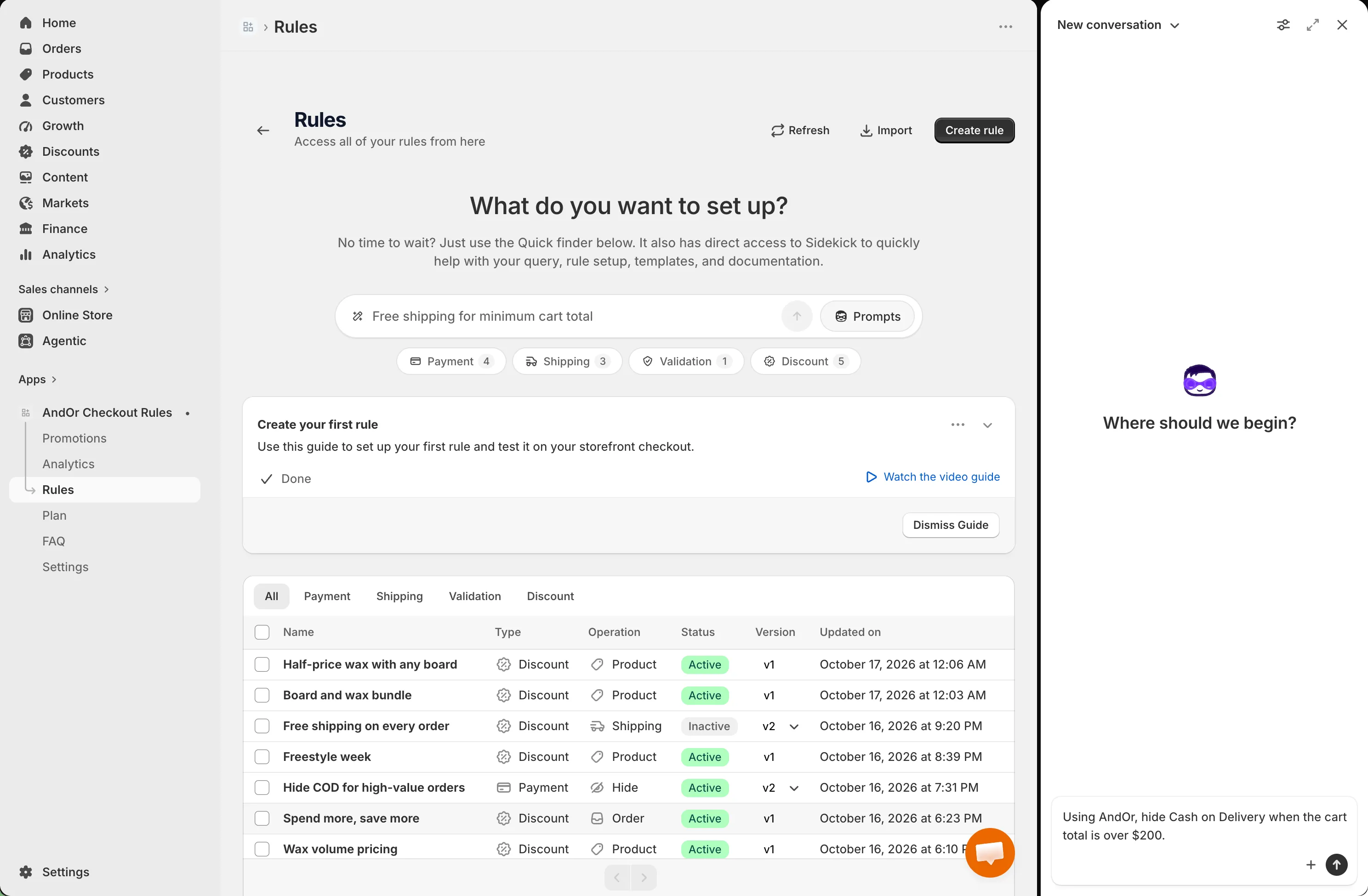
Open Sidekick in your Shopify admin and describe the rule.
For example: “Using AndOr, hide Cash on Delivery when the cart total is over $200.”
-
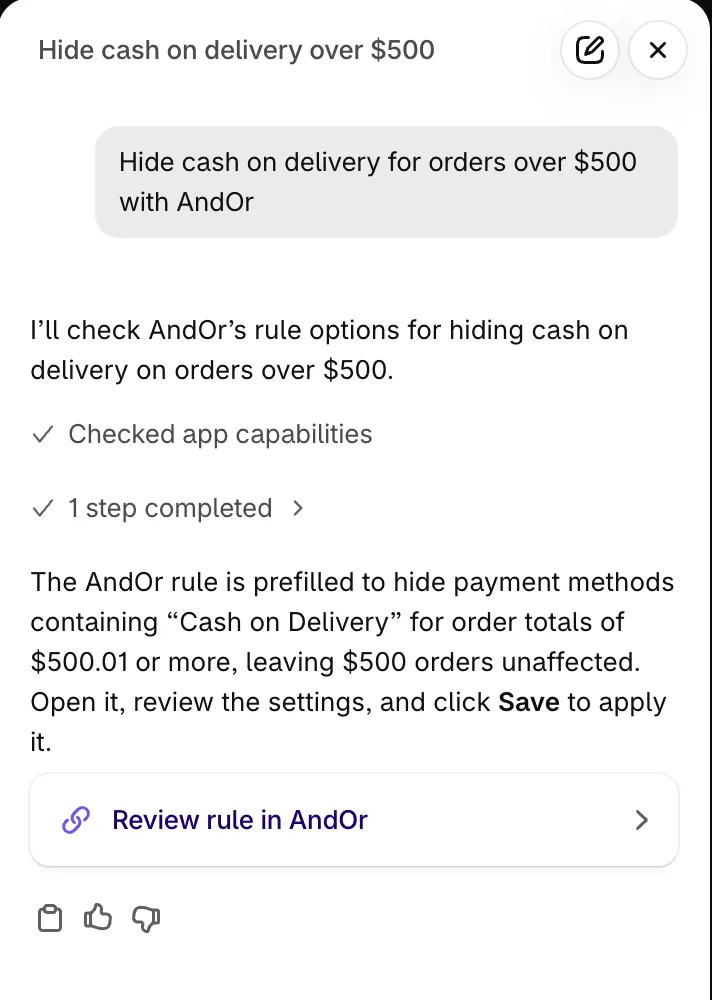
Click the link Sidekick gives you.
The AndOr rule builder opens with the form filled in.
-
Check every field, then click Save rule.
Nothing changes at your checkout until you save.
Tip Save new rules as a draft first, and test them at checkout with the test email from the rule’s Status card. See Test before going live.
Open Sidekick from AndOr
The Quick finder on the Rules page and the Create rule page can hand your question to Sidekick:
- Type a question and pick Ask Sidekick about your text.
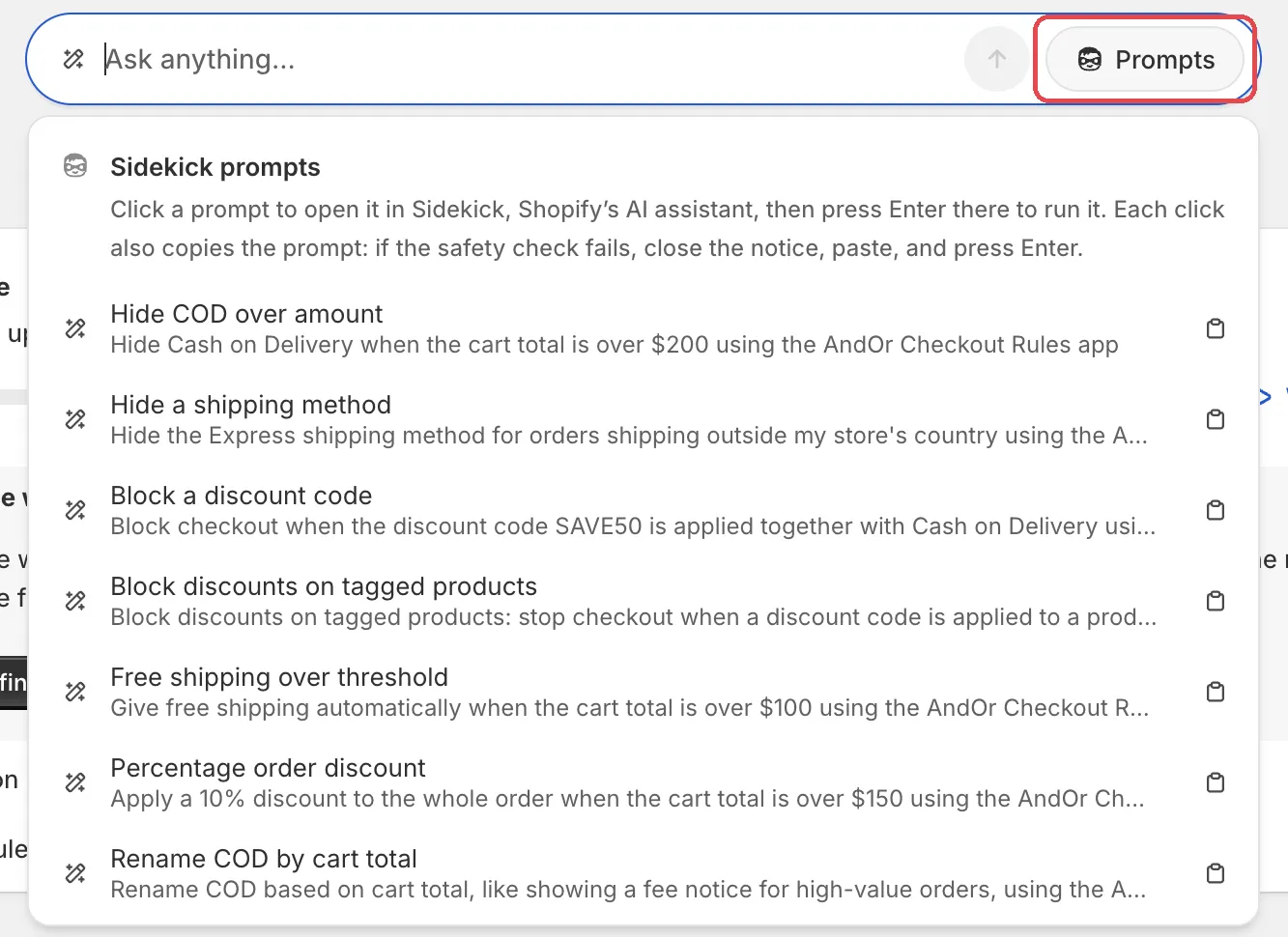
- Or click Prompts and pick one of the Sidekick prompts.
Sidekick opens with the prompt. Press Enter there to run it. The prompt is also copied. If Sidekick shows a safety check notice, close it, paste the text and press Enter.