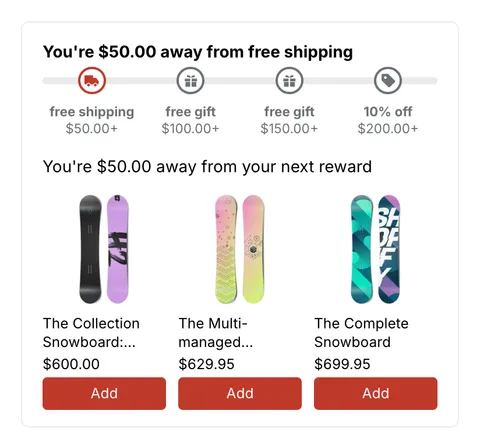
 See it in action
 How promotions work
On this page
A promotion is one discount plus the storefront widgets that show it, and often an upsell offer that nudges shoppers to add more. You pick a card in the gallery, change what you like, and AndOr sets up all three parts for you. For how promotions and offers fit together, see Promotions and upsell offers.
Promotion map
Every promotion, in the same order as the gallery in the app. Amounts are in your store currency.
Promotions with an upsell offer
| Promotion | Discount (default) | Theme block | Upsell offer and where it shows |
|---|---|---|---|
| Volume discount | 10% at 3, 15% at 6, 20% at 12 items | AndOr Volume tiers (picker layout) | Volume picker: product page |
| Bundle | 15% off 1 from Group A + 1 from Group B | AndOr Offer picker | Bundle: product page |
| Buy X get Y | Buy 1, next one 50% off | AndOr Offer picker | Buy X get Y: product page, cart page, cart drawer |
| Free gift | Free gift when the cart reaches 50 | AndOr Offer picker | Free gift: product page, cart page, cart drawer |
| Order goal | 5% at 50, 10% at 100, 15% at 200 | AndOr Order goal | Goal suggestions: product page, cart page, cart drawer |
| Free shipping goal | Free shipping at 75 | AndOr Order goal | Goal suggestions: product page, cart page, cart drawer |
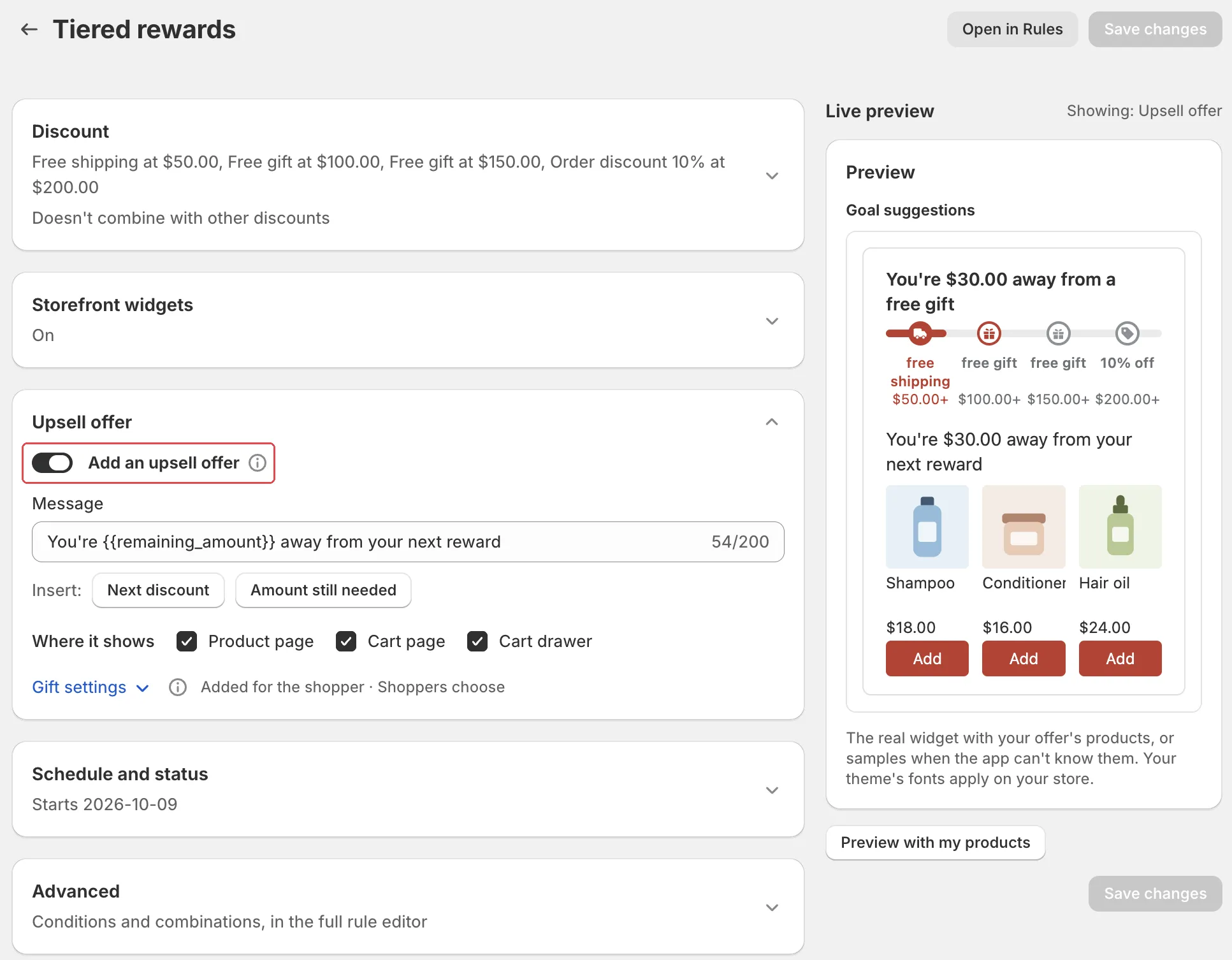
| Tiered rewards | Free shipping at 50, gift at 100, gift at 150, 10% off at 200 | AndOr Order goal, plus AndOr Offer picker (cart) for gift tiers | Goal suggestions, plus a Free gift offer per gift tier: product page, cart page, cart drawer |
Promotions with storefront widgets (no upsell offer)
| Promotion | Discount (default) | Theme block | Upsell offer and where it shows |
|---|---|---|---|
| Sale price | 20% off a collection | AndOr Sale price | None |
| Savings badge | 20% off a collection | AndOr Savings badge | None |
| Countdown sale | 20% off, ends in 3 days | AndOr Countdown | None |
| Collection banner | 20% off a collection | AndOr Collection banner | None |
| Order goal bar | Same tiers as Order goal | AndOr Order goal | None |
| Volume price table | Same tiers as Volume discount | AndOr Volume tiers (table layout) | None |
Widgets for discounts you already have (Current offers, Discount callout) are in Storefront widgets.
The three parts of a promotion
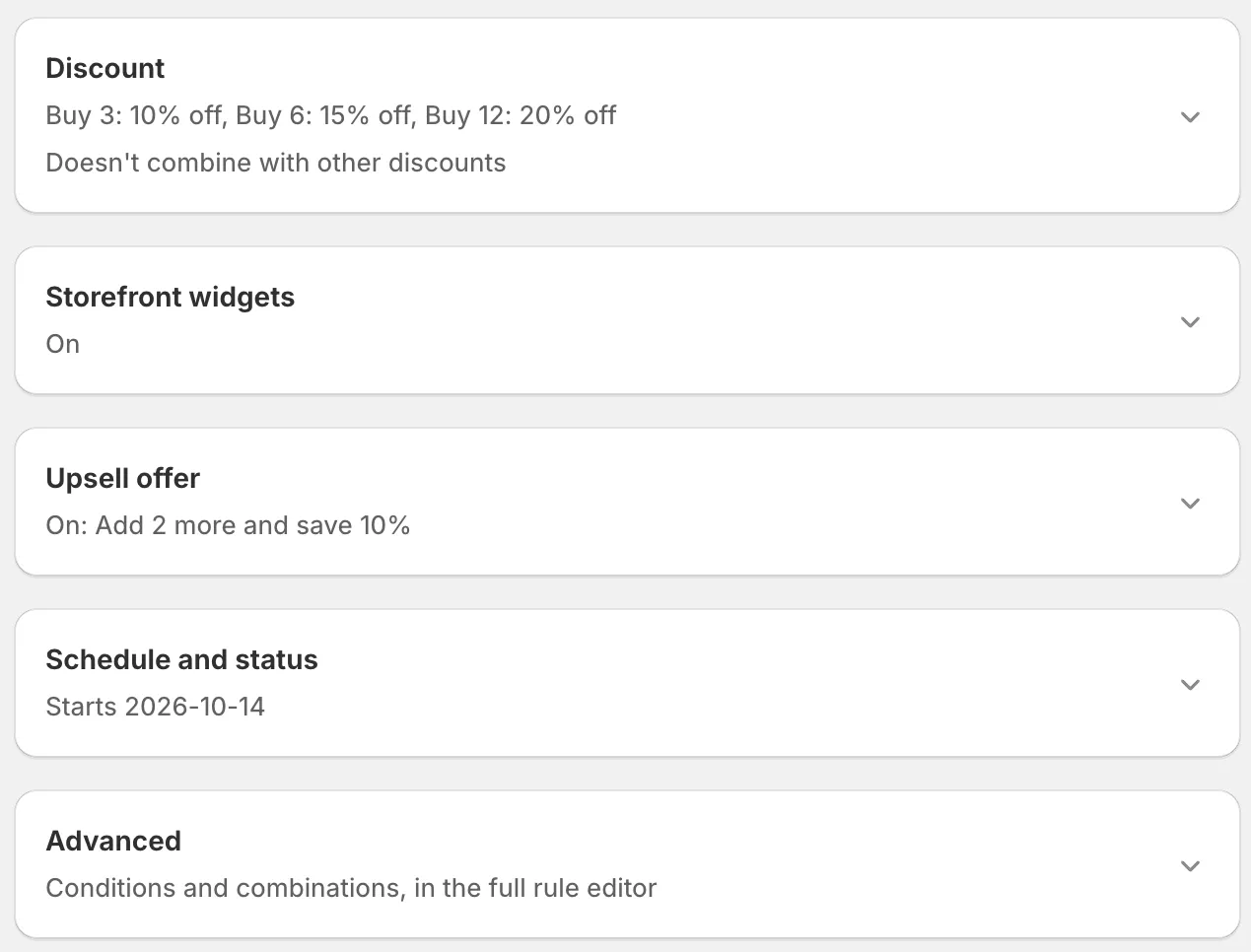
Every promotion page has the same parts. Each one is a section you open and close.
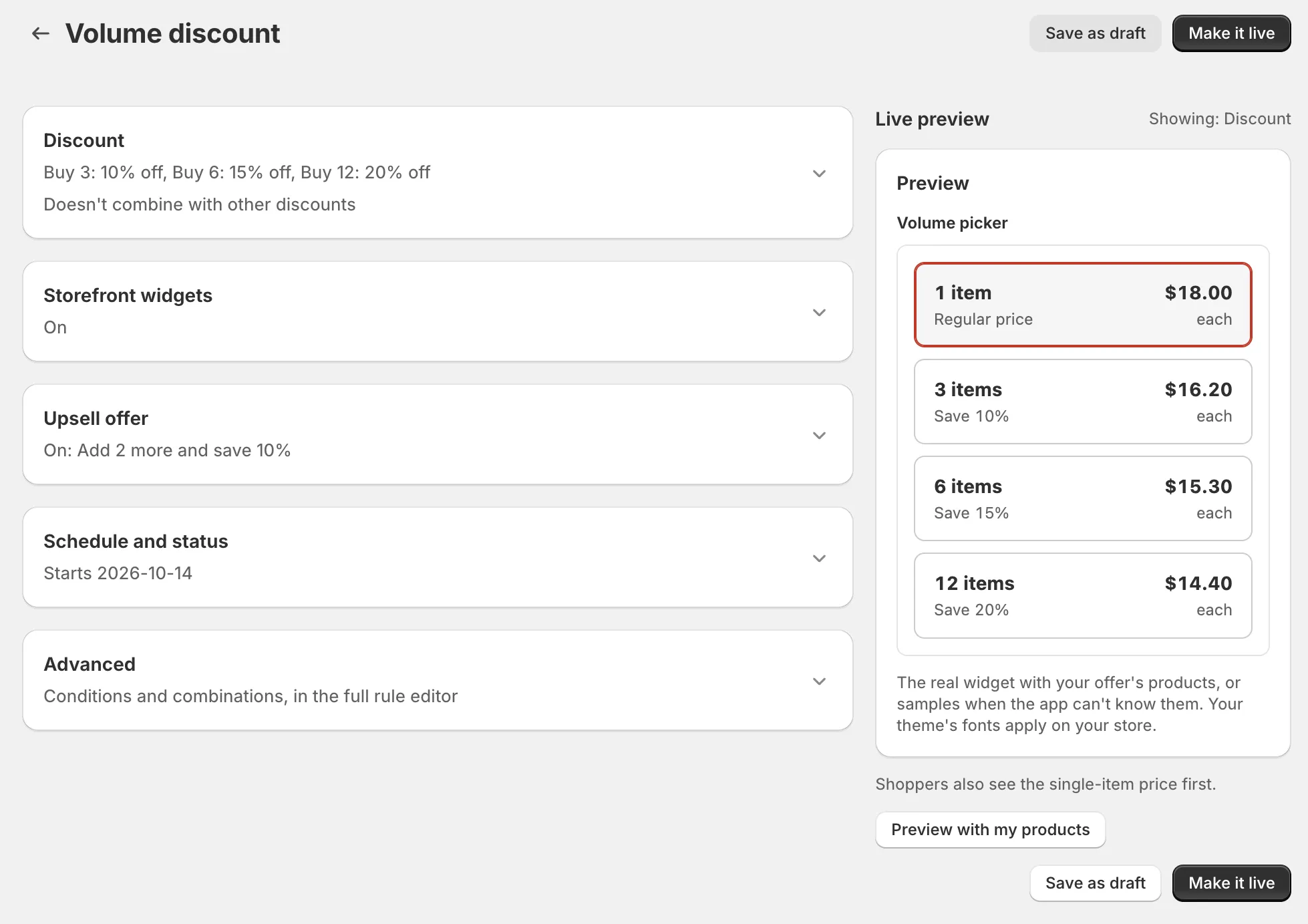
-
Discount: the real Shopify discount. Shoppers get it at checkout.
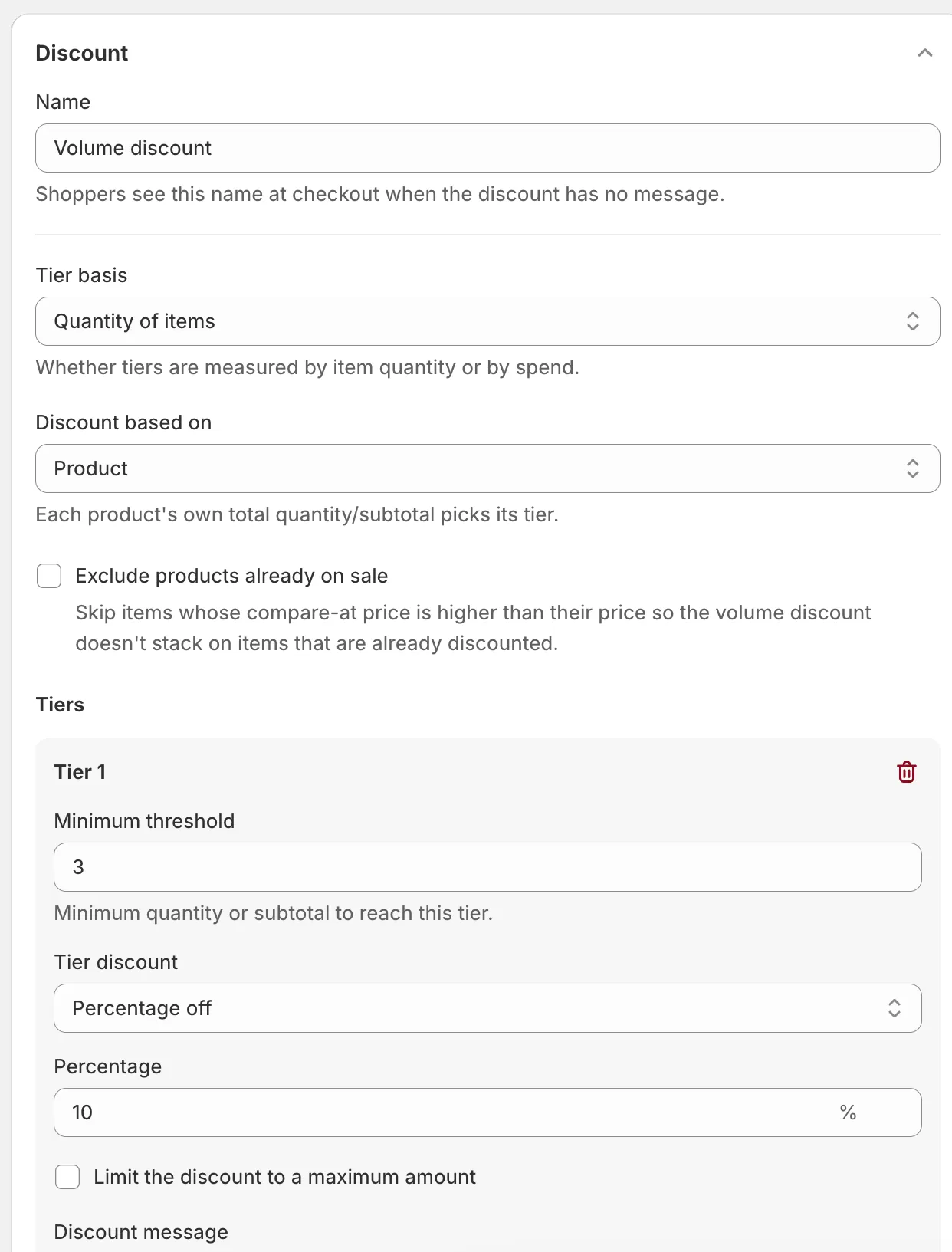
-
Storefront widgets: the blocks that show the discount on your store, for example a sale price or a progress bar. The Show storefront widgets switch says: “Shows this discount on your store. Turn on the app embed for the cart drawer and your colors and text.”
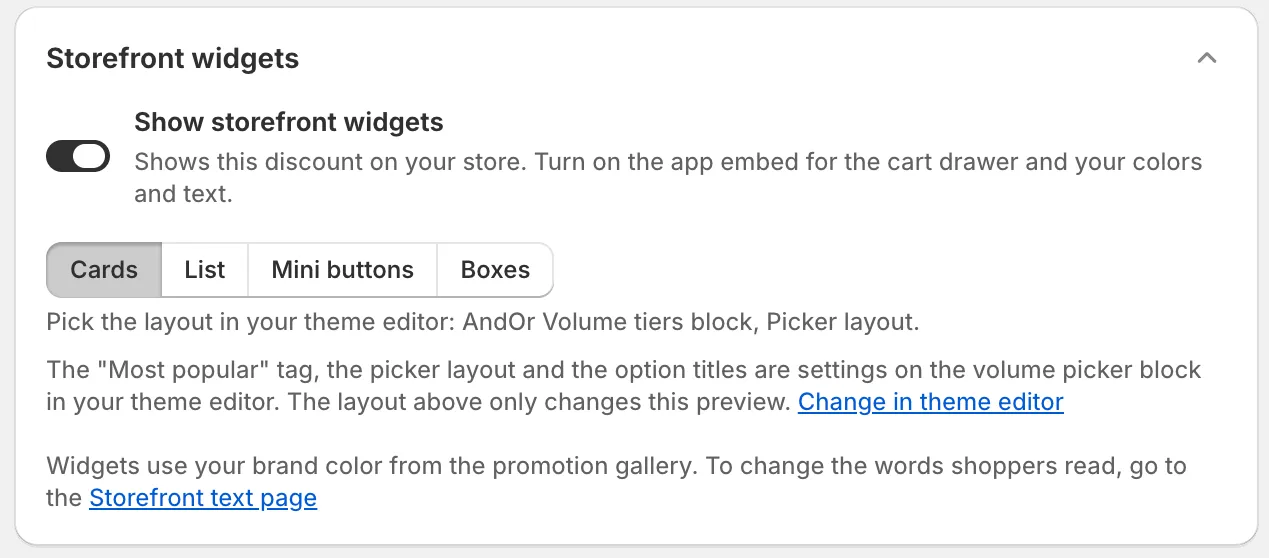
-
Upsell offer: a message that tells shoppers what to add to get the next reward. Only some promotion types have one.
-
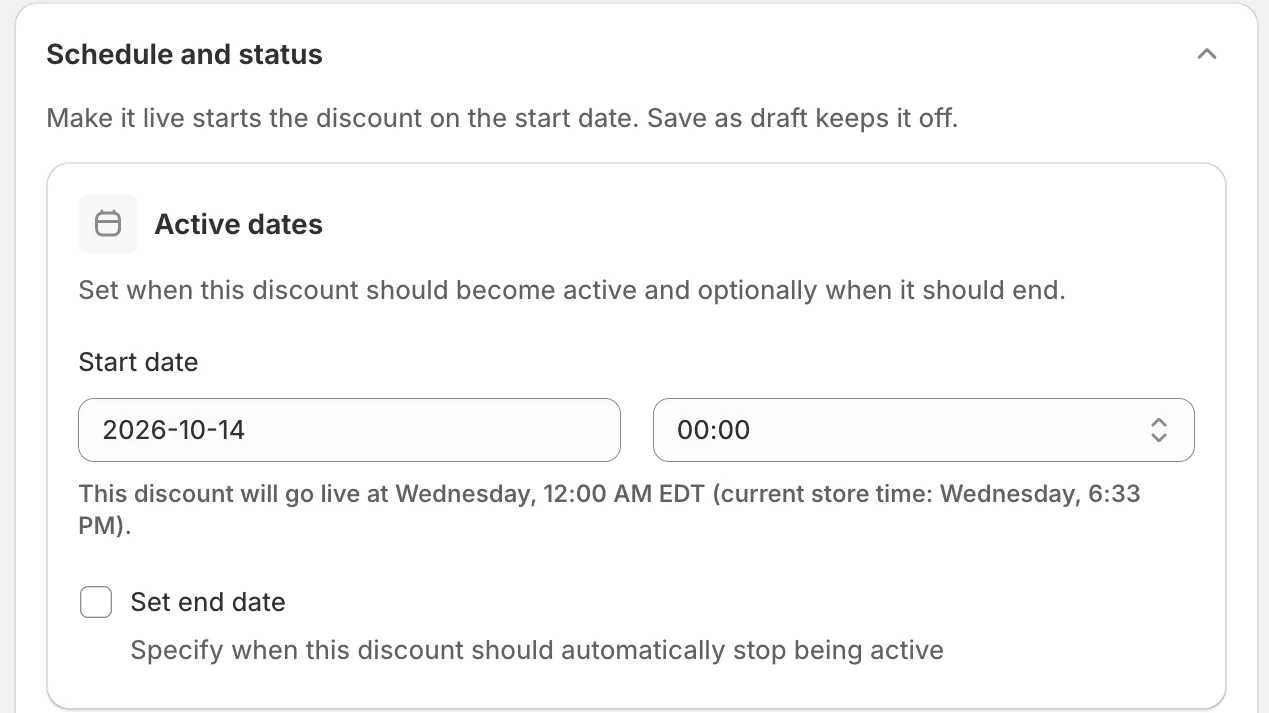
Schedule and status: when the discount starts and ends. See Schedule and status.
-
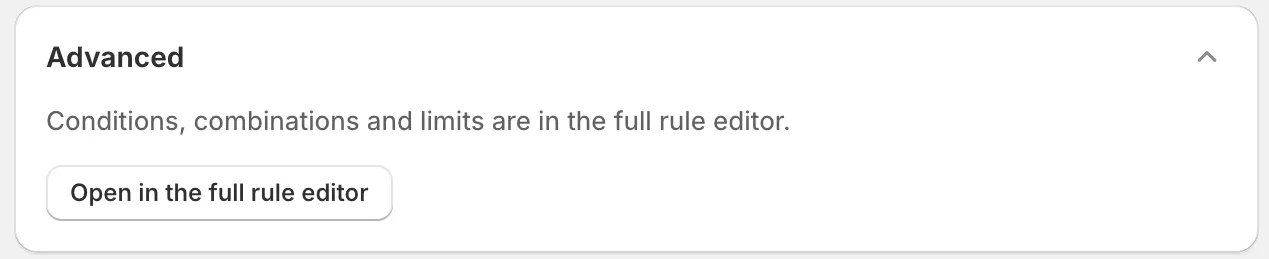
Advanced: the link to the full rule editor. See Advanced: the full rule editor.
-
Live preview: a sticky panel on the right. It shows what the open section looks like on your store.
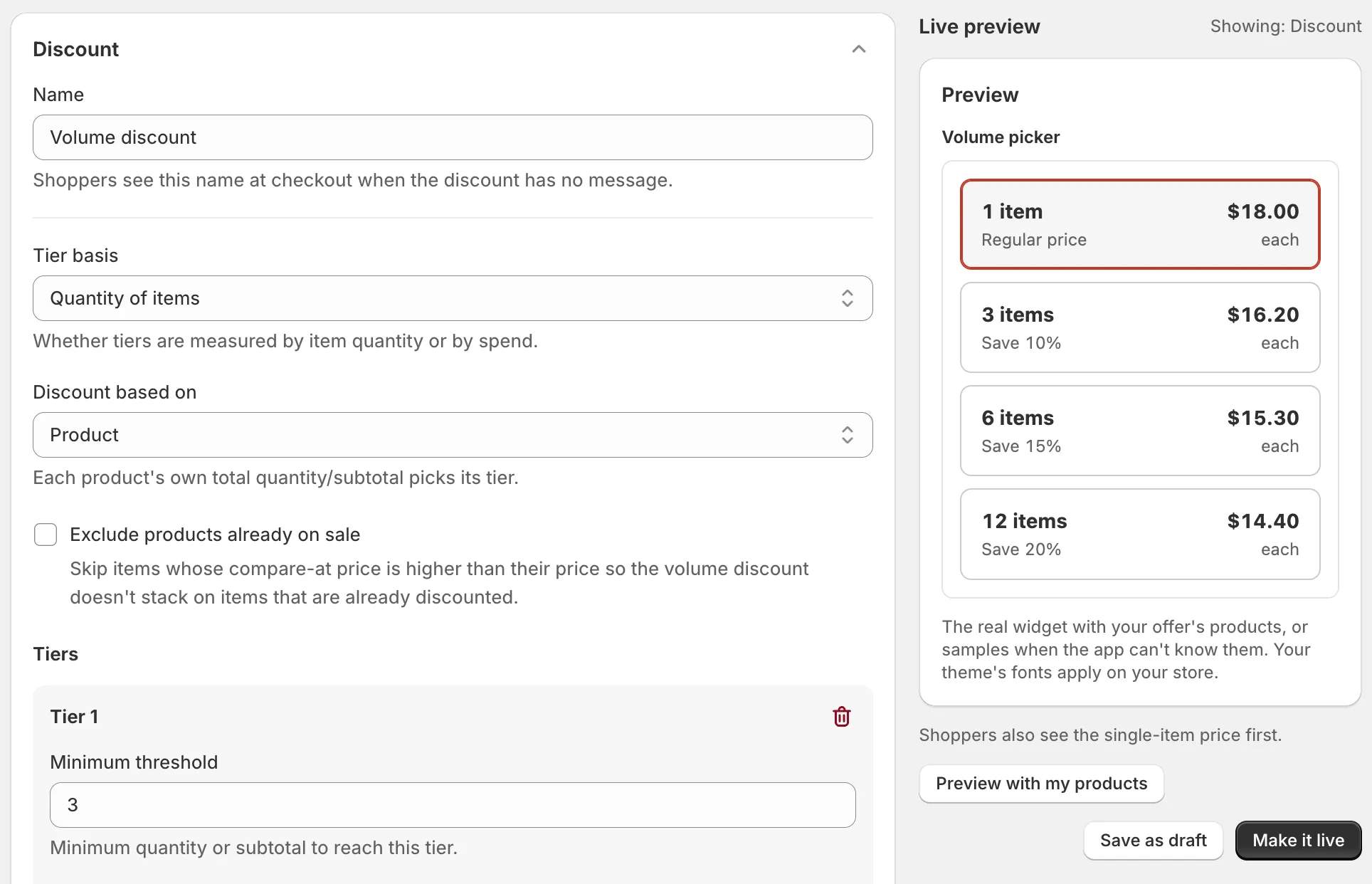
Note A widget shows once its block is in your theme. The block shows without the app embed. The app embed adds your brand color, the parts in the cart drawer (if any), shared look settings and your Storefront text. See Install and turn on the app embed.
The Create promotion gallery
Click Create promotion on the Promotions page. The gallery says “Pick a widget. You can change everything before it goes live.”
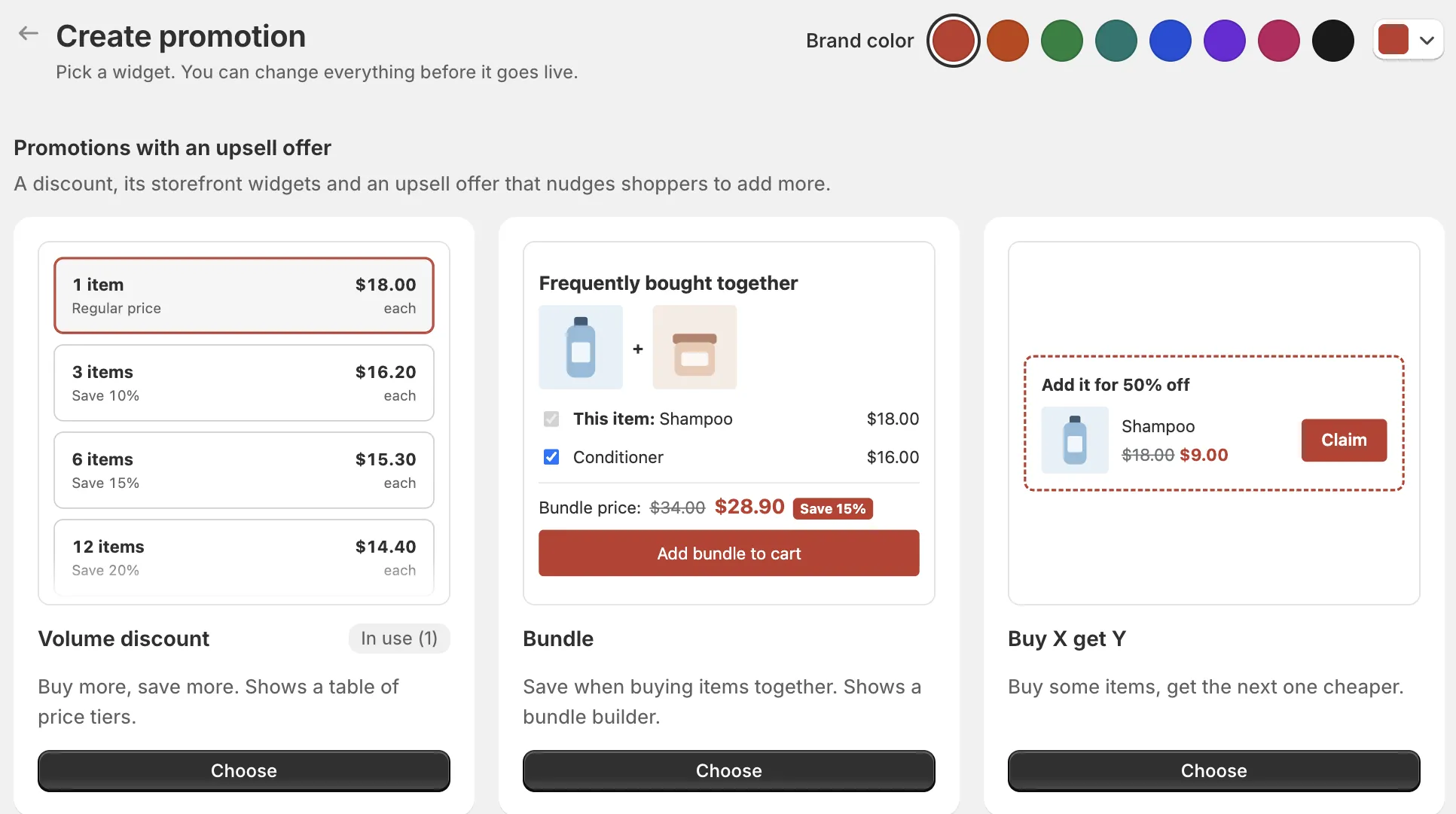
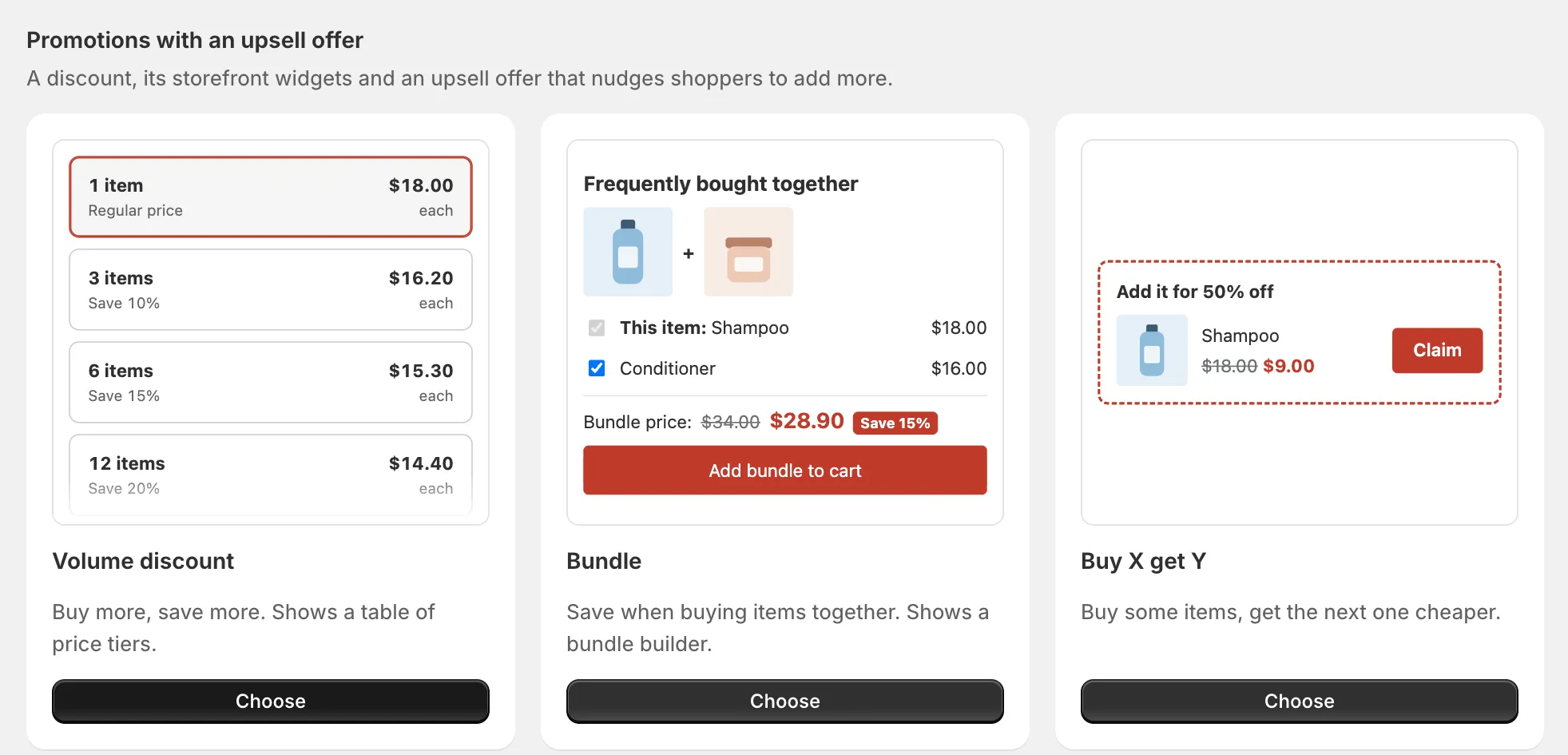
The gallery has two sections, named as in the app: Promotions with an upsell offer and Promotions with storefront widgets. See the Promotion map for every card.
Each promotion card has a Choose button that opens a promotion page. The second section ends with two widget cards, Current offers list and Discount callout. They carry a No discount tag and an Add widget button: they add a widget for discounts you already run, and do not create a discount. See Current offers and Discount callout.
A card you already use shows a badge such as In use (2).
The Brand color picker sits on the gallery title row. See Brand color.
Create a promotion
-
Open Promotions, click Create promotion, then click Choose on the card you want.
The promotion page opens with a working setup. The name is the card’s title, for example “Volume discount”. Each discount needs its own name. If you already use the name, the Name field says “A discount with this name already exists. Choose another name.”
-
Open each section and change what you need.
The section header shows a one-line summary, so you can check a section without opening it.
-
Click Make it live, or Save as draft.
Make it live starts the discount on the start date. Save as draft keeps it off.

-
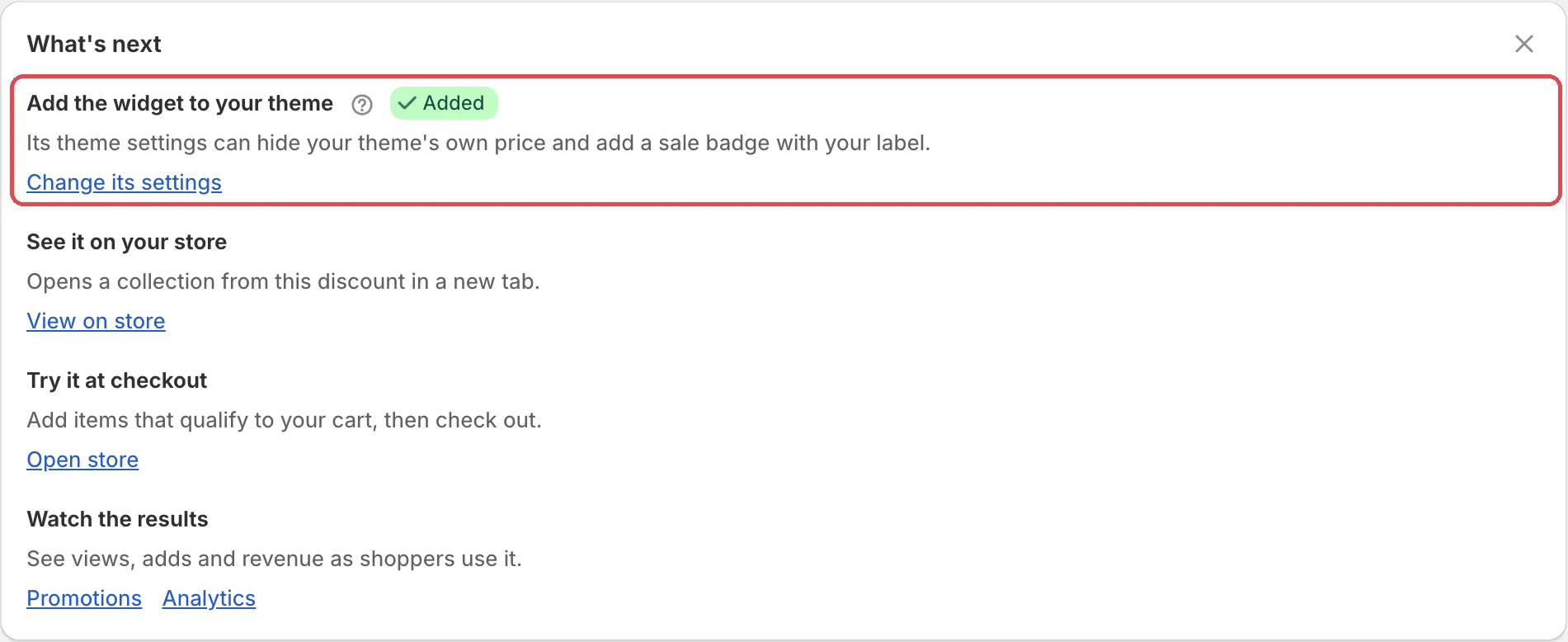
Follow What’s next to add the widget to your theme.
After you click Make it live, a What’s next panel lists four steps: Add the widget to your theme, See it on your store, Try it at checkout and Watch the results. It does not show after Save as draft, and it goes away when you dismiss it or leave the page. No What’s next panel? Open Promotions. In the row’s Storefront widgets column, click Add block. It shows when the block isn’t in your theme yet.
Save as draft
Save as draft saves the discount as a draft in Shopify. Its storefront widgets stay off and no upsell offer is created.
Storefront widgets only show active discounts, so a draft has no storefront preview. To try a draft discount at checkout, see Test before going live.
Schedule and status
Active dates sets Start date and Start time. Tick Set end date to add an End date and End time.
When you edit a saved promotion, the help text says “Saving keeps the promotion’s status. Turn it on or off in the full rule editor.”
Combine with
The Discount section ends with Combine with. Tick the kinds of discount this one can combine with: Product discounts, Order discounts or Shipping discounts. A shipping discount shows only Product discounts and Order discounts.
“Discounts that combine can share one goal bar. Shopify applies only the best discount when they don’t.”
For example, an order goal and a free shipping goal that combine can both show on one goal bar. If they do not combine, the shopper gets only the better one at checkout.
Advanced: the full rule editor
Every promotion is also a rule. Advanced holds the link Open in the full rule editor. It works after the first save.
The full rule editor has conditions, combinations and limits. When you edit a promotion, the page also has an Open in Rules button.
Caution Some rule settings stop storefront widgets from showing the discount, for example a condition or a second rule block. The Show storefront widgets switch is then off and the page says why. See Limits.
Manage your promotions
The Promotions list shows every deal you run, whether it shows on your store, and what it earns. See Manage promotions.
Plan limits
Every plan includes promotions, the Free plan too. Discounts count toward your plan’s rule limit. When you reach it, the page says “You reached your plan’s discount limit. Make it live won’t save until you upgrade. Save as draft still works.”
Drafts do not count toward the limit. Limits count active rules. See Plans and billing.
Caution If your store reaches 110% of your plan’s monthly orders, upsell offers and storefront widgets pause until next month or until you upgrade. Discounts keep working. See Offers and widgets paused.
When part of a save fails
The discount is saved first. If a later part fails, a banner says what is missing:
- “Your discount is live, but the upsell offer was not created”, with Create the upsell offer.
- “Your discount is live, but some gift offers were not created”, with Add gift offers.
- “Your discount is live, but its storefront widgets are off”. Open Storefront widgets, turn on Show storefront widgets, then save.
Limits
- Name: up to 60 characters.
- Storefront widgets cannot show some discounts. Common reasons: it only applies when a condition is met, it has more than one rule block, it has a maximum discount amount, it rejects discount codes, or it applies to subscription purchases only. The page names the exact reason, for example “Storefront display is not available for this discount because it has more than one rule block.”
- Storefront widgets cannot show a product tag. Pick products or a collection instead.