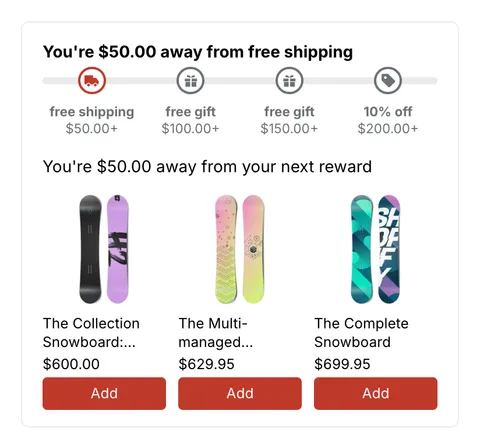
 See it in action
 How upsell offers work
On this page
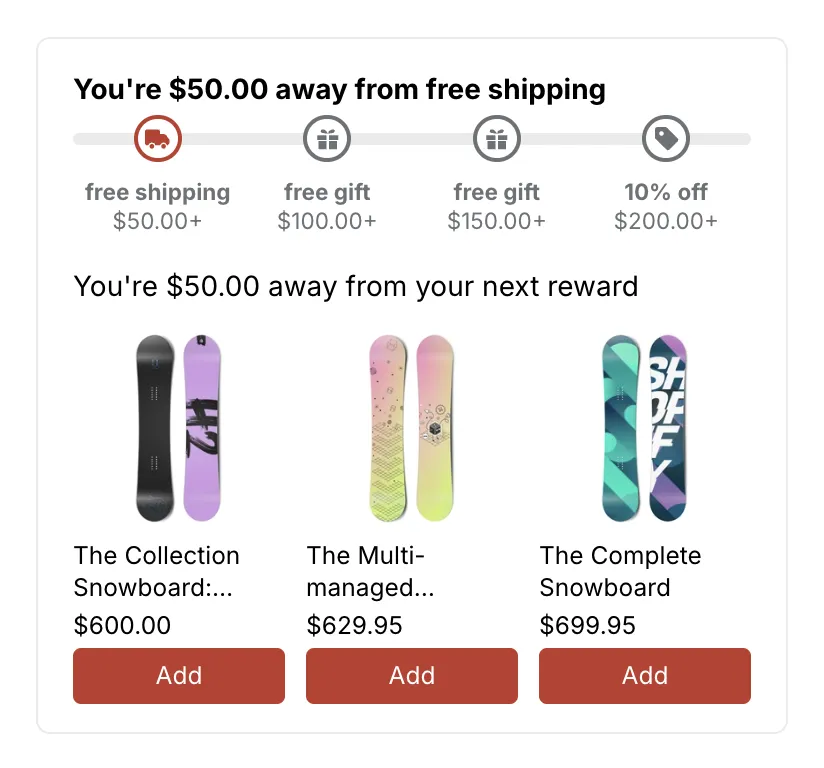
An upsell offer shows shoppers what to add to get a discount you already give. They add it in one click. For example, a volume discount gets an offer that says “Add 1 more to save 10%”, with a button that adds the item.
New to how offers and promotions fit together? See Promotions and upsell offers.
Why use offers
Most shoppers don’t do the math. They don’t see that one more item gets them 10% off, or that they are close to free shipping. An offer tells them, at the right moment, and adds the item in one click.
- Bigger carts. Shoppers add one more item to reach the next reward.
- More deals used. A discount nobody notices does not help. The offer puts it in front of shoppers.
- No new discount. The offer reuses a discount you already give. It never makes the discount bigger.
What an offer is
An offer is a small add-on to one of your discounts. It has three parts:
- A discount. The offer points at a discount that already shows on your storefront. The discount decides the offer type.
- A message. The line shoppers read, for example “You’re
{{remaining_amount}}away from your next reward”. The widget swaps the variable for the amount still needed in the shopper’s cart. - Places. Where the offer shows: the Product page, the Cart page or the Cart drawer.
The offer never changes the discount. Shopify still decides at checkout whether the discount applies. The offer only helps shoppers get there.
Where offers come from
You can get an offer in two ways:
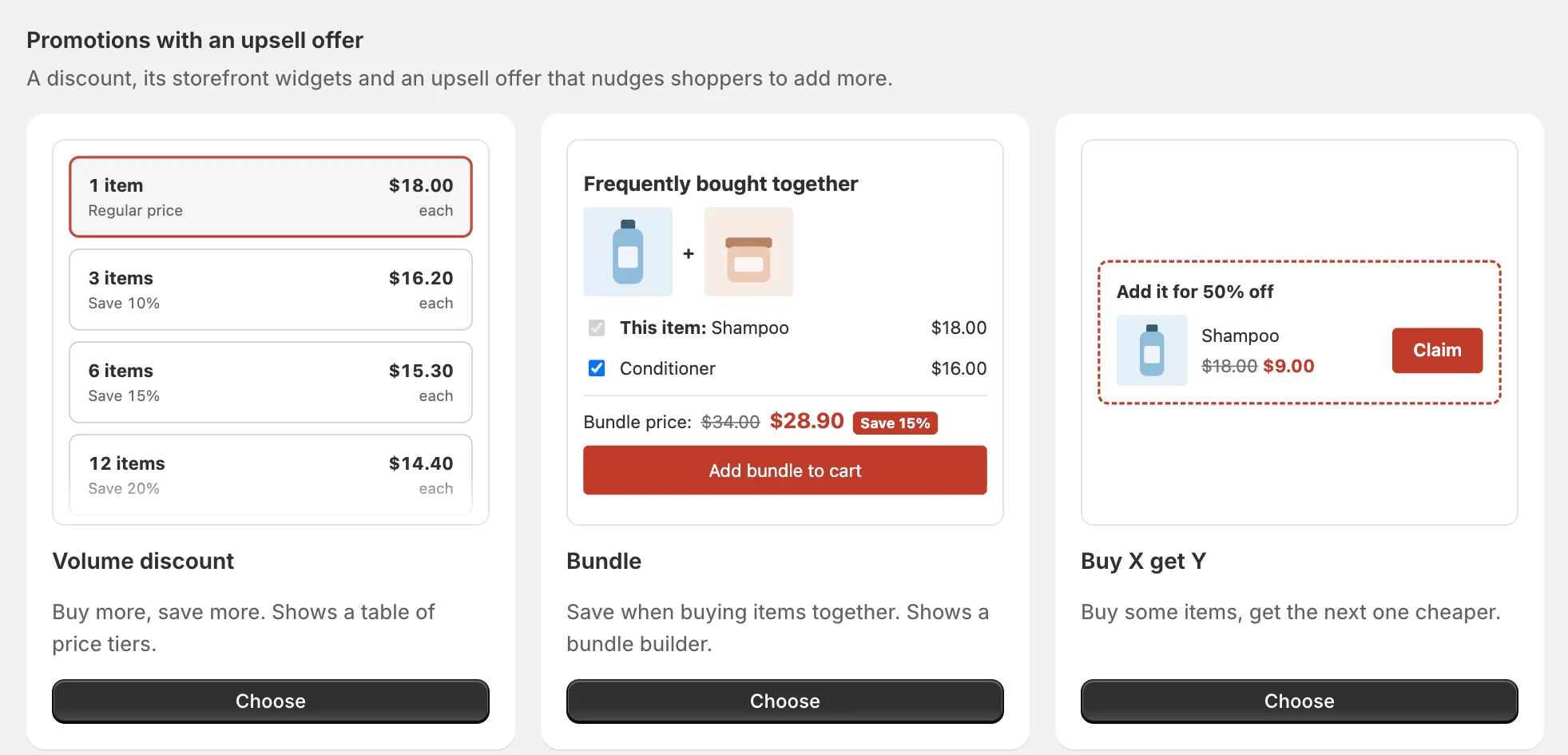
- From a promotion. Promotions in the Promotions with an upsell offer section of the gallery come with an offer. Add an upsell offer is on by default in the promotion’s Upsell offer section.
- On its own. For a discount you made in Rules or in Shopify, open Promotions, then the Upsell offers tab, and click Create offer. See Create an upsell offer.
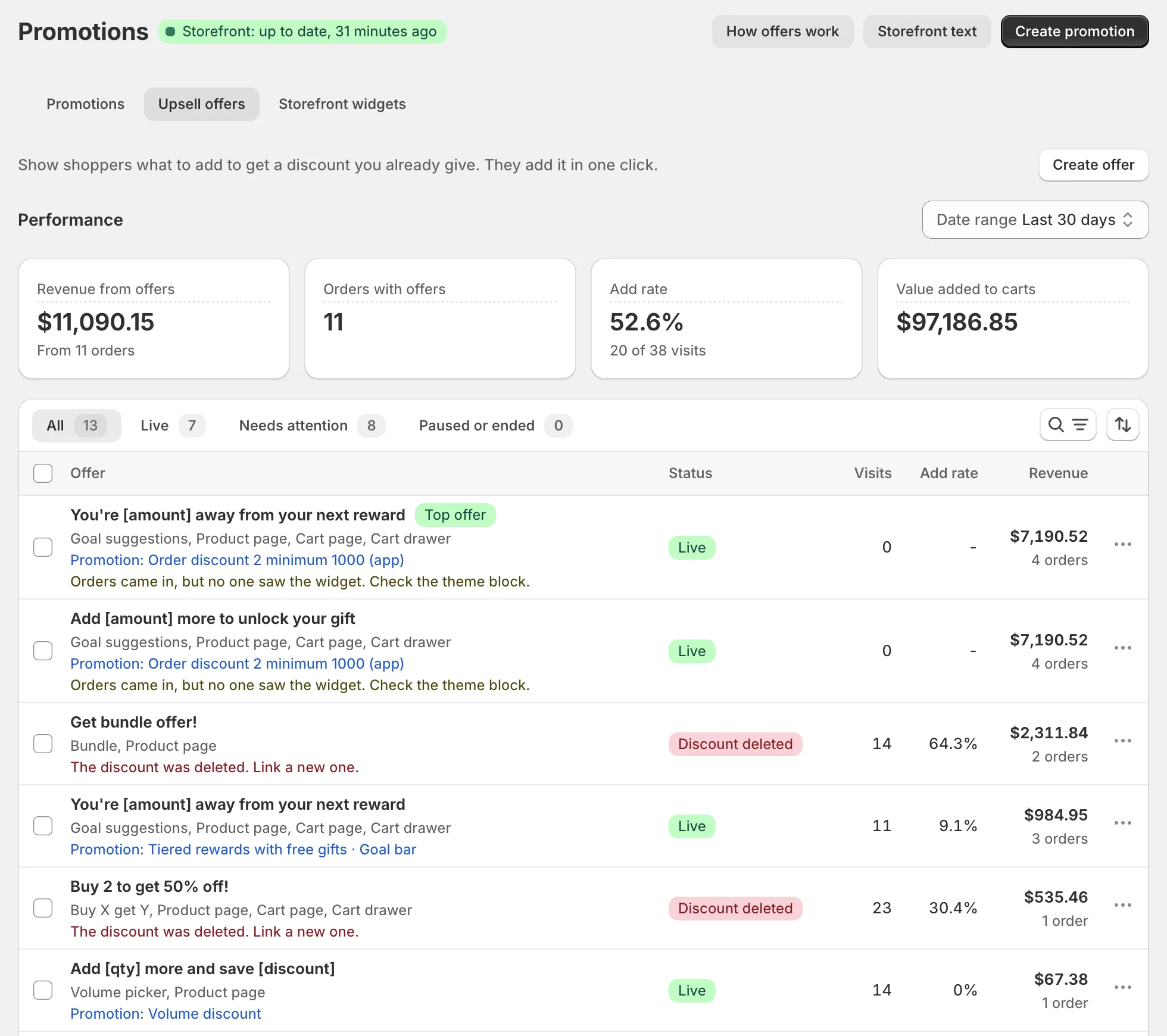
Both ways make the same kind of offer. You manage all of them on the Upsell offers tab.
Which discounts can have an offer
A discount can have an offer when both of these are true:
- It is one of these kinds: volume discount, order goal, free shipping goal, tiered rewards, bundle, Buy X get Y or free gift.
- It shows on your storefront. Its storefront widgets are on.
A sale price, a savings badge or a discount code can’t have an offer. If no discount fits, the tab says: “None of your storefront discounts can have an offer yet. Turn on storefront display for a volume, goal, bundle, Buy X get Y or free gift discount first.”
What shoppers see
Each offer type has its own look. A few examples:
- Volume picker: a quantity picker on the product page.
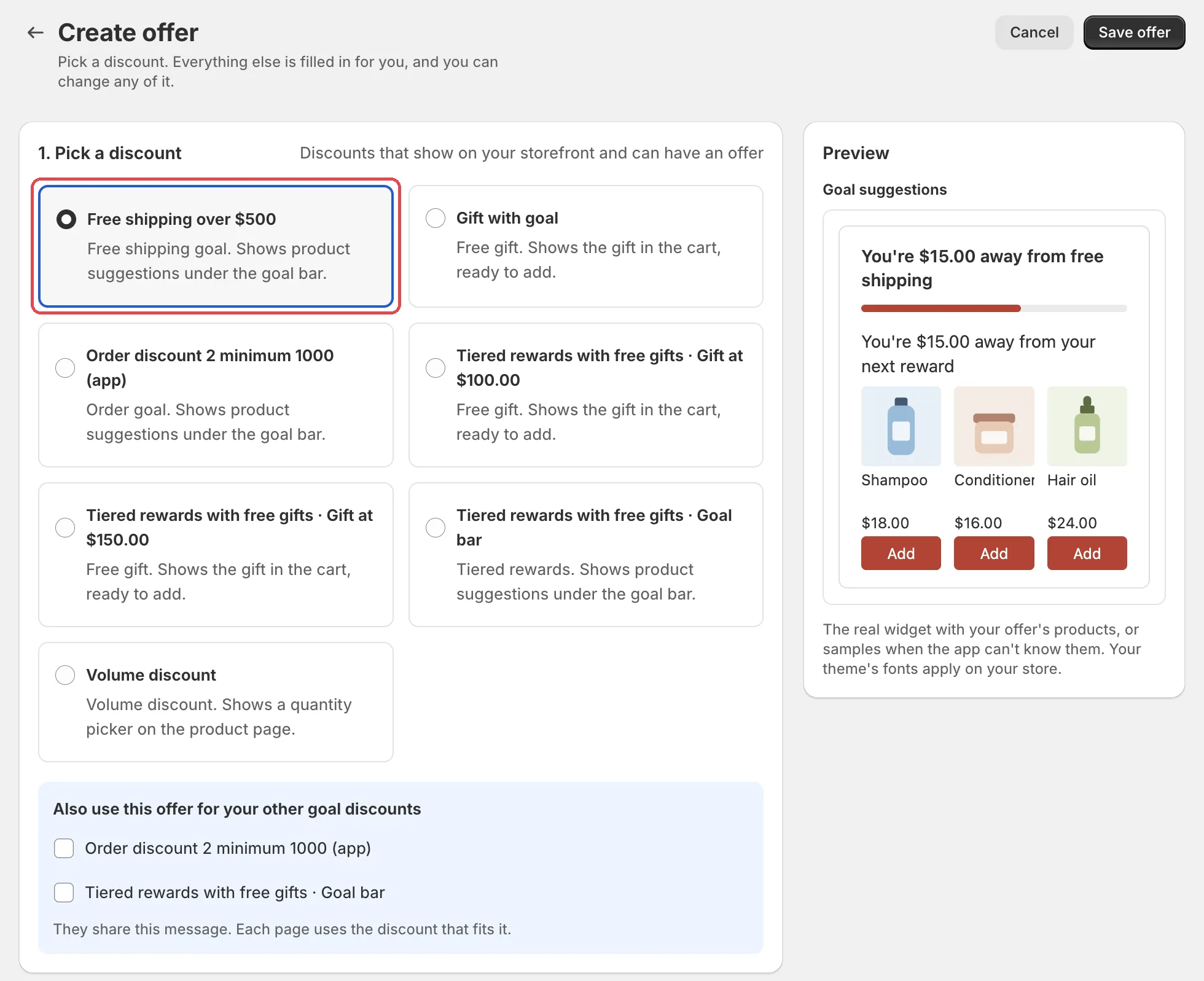
- Goal suggestions: product suggestions under the goal bar. By default they come from Shopify’s own product recommendations.
- Free gift: the gift in the cart, ready to add.
See Offer types for every type.
How to start
-
Pick a discount that shows on your storefront.
The easiest way is a promotion from the gallery. See How promotions work.
-
Create the offer.
AndOr fills in a message and products. Change anything you like. See Create an upsell offer.
-
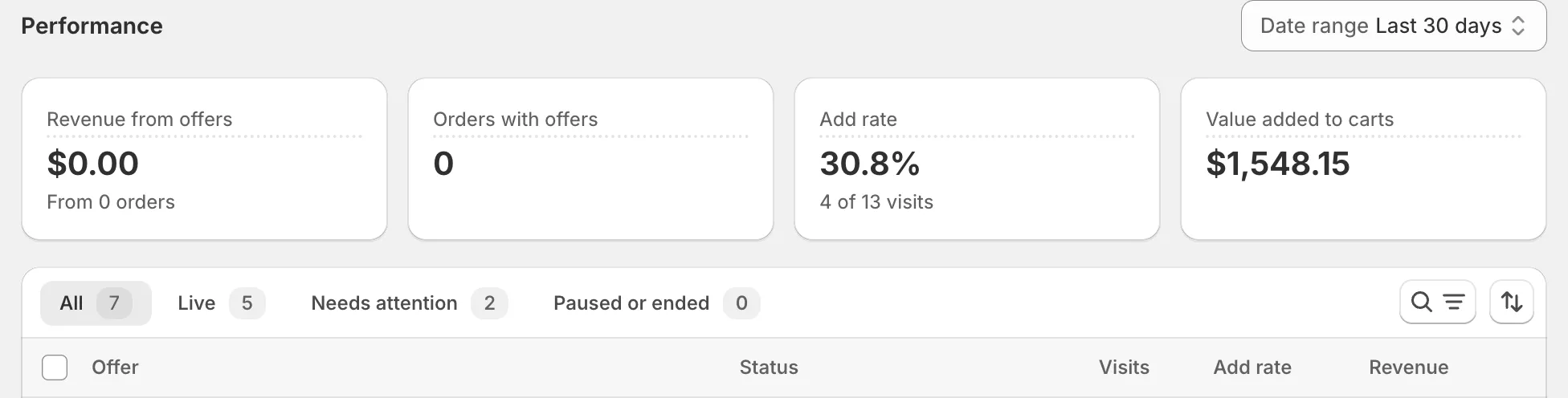
Check the results after a few days.
The Upsell offers tab shows how each offer does, for example its views and adds. Fix rows under Needs attention. See Manage offers.
What you need on your theme
Offers show inside the AndOr theme blocks. Your theme needs the block for the offer type, for example the AndOr Order goal block for goal suggestions. Offer types lists the block and the places for every type.
Offers in the cart drawer also need the AndOr Discount Display app embed and a theme that sends Shopify’s storefront cart events, like Horizon 4.0+ or Dawn 15.5+. On other themes, they show on the cart page and product page only. See What needs the app embed and Theme requirements.